Email Alerts and Scheduled Reports
The platform sends administrators email through two separate mechanisms, and it is worth being precise about which does what.
| Fires on | Configured in | |
|---|---|---|
| Risk profiles | A security or user event, the moment it happens | User Settings → Risk Profiles |
| Report subscriptions | A schedule you choose, daily, weekly or monthly | Report Settings → Report Subscriptions |
Risk profiles are event-driven. Report subscriptions are time-driven. Together they cover security events, user issues and operational reporting.
Email alerts on security and user events
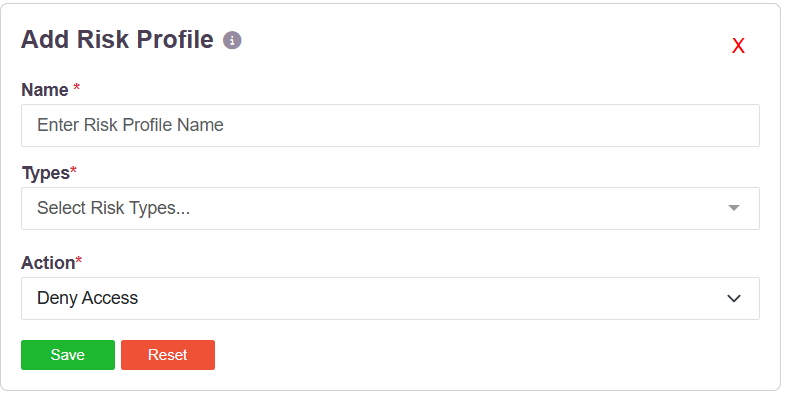
A risk profile pairs a set of risk types with a single action. When a user trips any type in the profile, the action runs. Choosing Email Admin as the action turns the profile into an email alert.
The risk types
Twelve event types can be put in a profile:
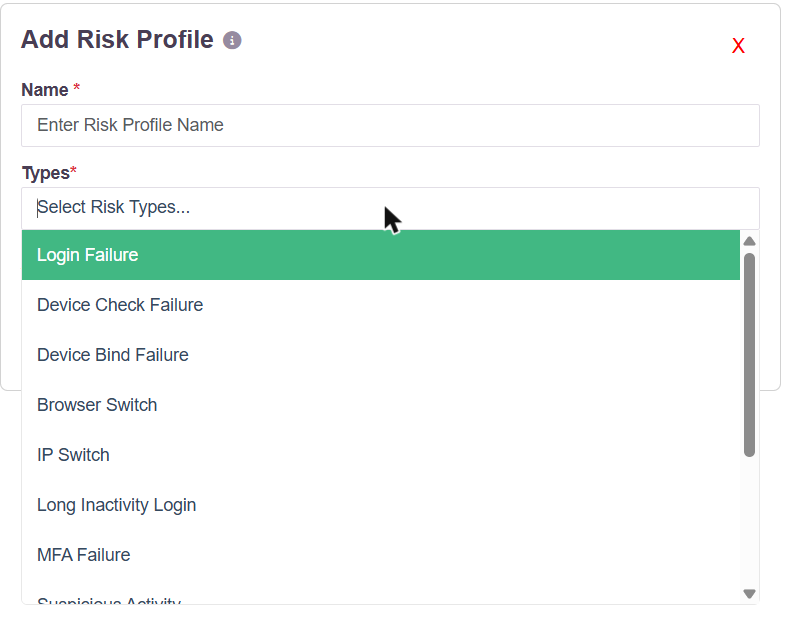
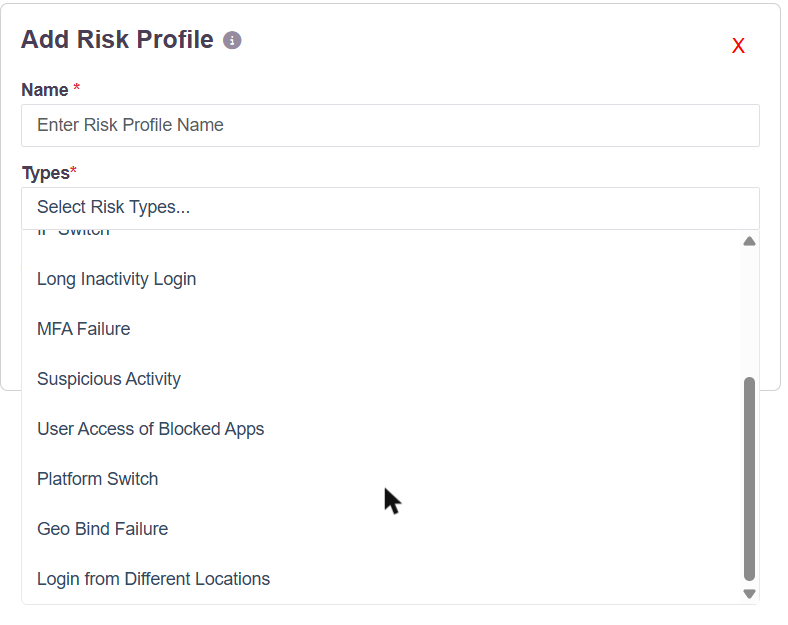
| Type | Fires when |
|---|---|
| Login Failure | A sign-in attempt fails |
| MFA Failure | The second factor fails |
| Device Check Failure | The endpoint fails a configured device check |
| Device Bind Failure | The user signs in from a device that is not bound to them |
| Geo Bind Failure | The user signs in from outside their permitted geography |
| Login from Different Locations | The same account is used from more than one place |
| IP Switch | The source IP changes during or between sessions |
| Browser Switch | The browser differs from the one previously seen |
| Platform Switch | The operating system differs from the one previously seen |
| Long Inactivity Login | An account dormant for a long period is used again |
| Suspicious Activity | Activity the platform scores as anomalous |
| User Access of Blocked Apps | A user attempts an application that policy blocks |
A profile can carry one type or many. Several profiles can exist side by side, each with its own types and its own action.
The actions
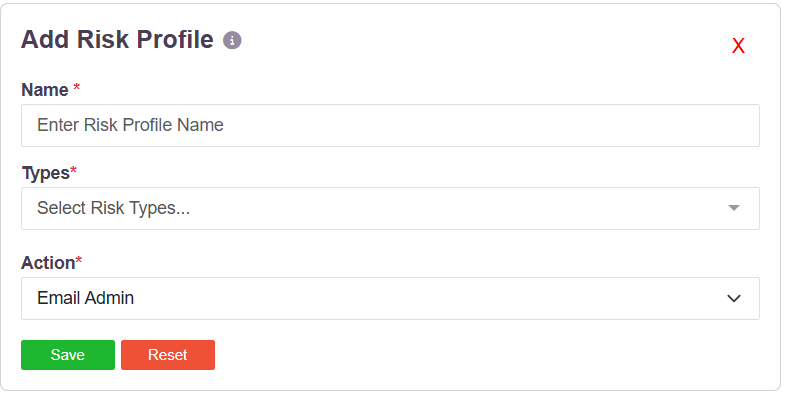
| Action | Effect |
|---|---|
| Email Admin | Sends an email to the administrator. This is the alert. |
| Deny Access | Refuses the access attempt |
| Suspend User | Suspends the account |
| Disconnect User | Ends the user's active session |
Creating one
- Go to User Settings → Risk Profiles and click Add.
- Enter a Name for the profile.
- Open Types and select the events the profile should watch. More than one can be selected.
- Set Action to Email Admin.
- Click Save.
The profile is then assigned to users, groups or access policies, and the administrator is emailed whenever a covered event occurs.
Scheduled report delivery
Report subscriptions email reports on a timetable, to one or more addresses, without anyone logging in to fetch them.
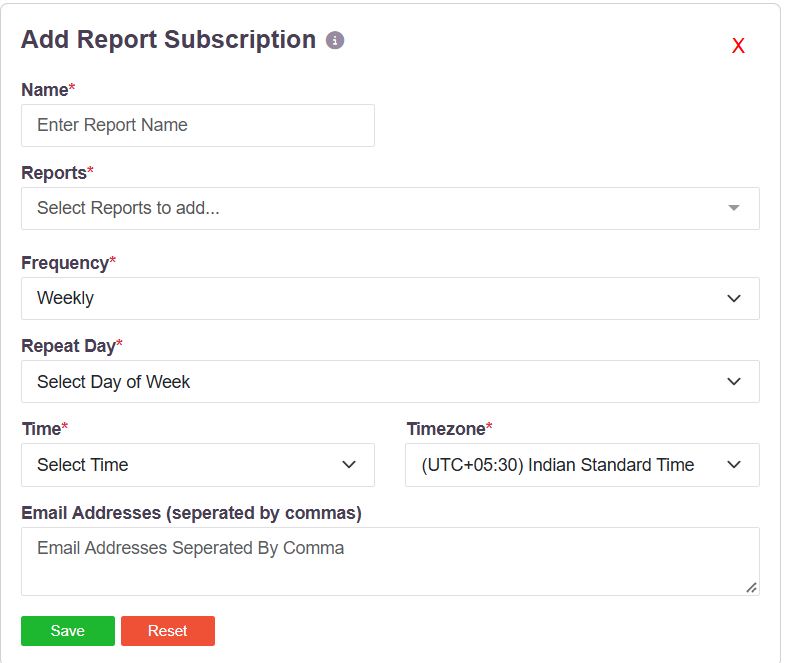
| Field | What it takes |
|---|---|
| Name | A name for the subscription |
| Reports | One or more reports to include |
| Frequency | Daily, weekly or monthly |
| Repeat Day | The day of the week the report goes out |
| Time and Timezone | When it is sent, in the timezone you choose |
| Email Addresses | Recipients, separated by commas |
Reports that can be subscribed to
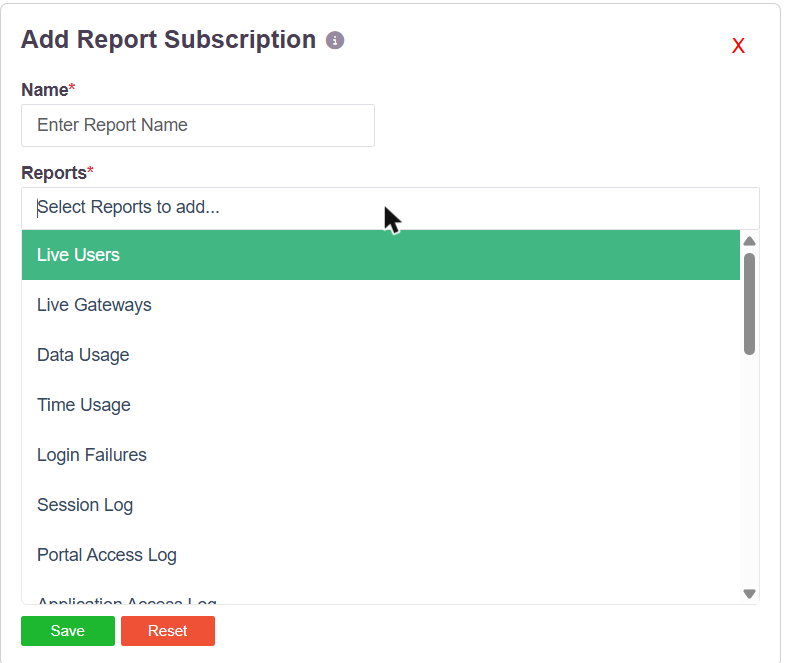
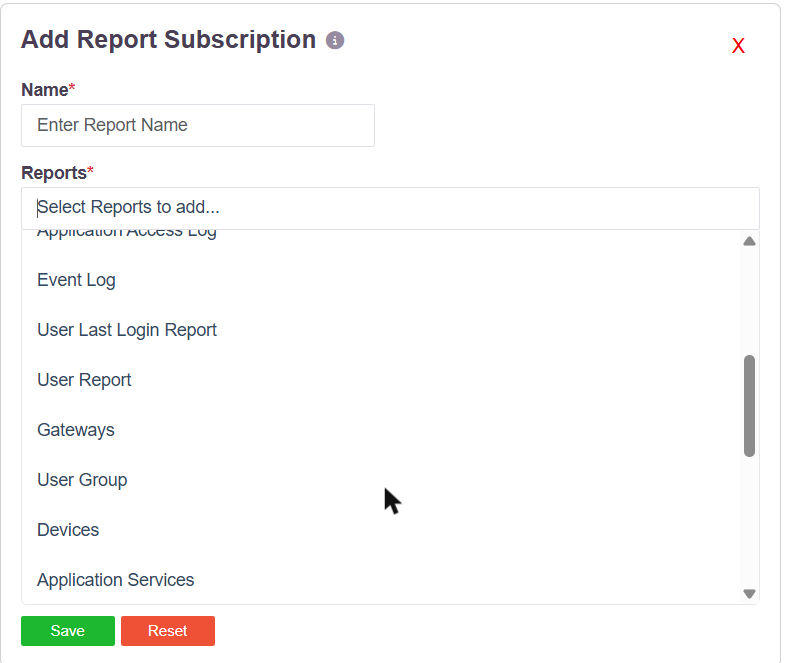
Live Users · Live Gateways · Data Usage · Time Usage · Login Failures · Session Log · Portal Access Log · Application Access Log · Event Log · User Last Login Report · User Report · Gateways · User Group · Devices · Application Services · Access Policies · Application Groups
Live Users, Live Gateways, Data Usage, Time Usage and Gateways are the consumption and capacity reports. Subscribing to those delivers utilisation figures to administrators on a schedule.
Creating one
- Go to Report Settings → Report Subscriptions and click Add.
- Enter a Name.
- Open Reports and select the reports to include.
- Choose a Frequency, then the Repeat Day, Time and Timezone.
- Enter the recipient Email Addresses, separated by commas.
- Click Save.
What is not in the product
There is no threshold alarm. Nothing sends an email because CPU, memory, bandwidth, session count or licence consumption crossed a configured limit. Utilisation reaches administrators as a report on a schedule, through a subscription, not as an event-driven alert.
Audit reports can also be downloaded or scheduled from the Exports section — see Audit Logs. For streaming events to a SIEM, see Event Stream.