InstaSafe Authenticator App
The InstaSafe Authenticator App is a secure and easy-to-use mobile application that helps enhance the security of user accounts by implementing Multi-Factor Authentication (MFA). By adding an extra layer of protection through Time-Based One-Time Passwords (TOTP), InstaSafe ensures that your systems and applications are safeguarded against unauthorized access, even if a user's primary credentials are compromised.
InstaSafe Authenticator App Designed For
The InstaSafe Authenticator App is designed for:
-
Enhanced Security: The app enables two-factor authentication (2FA). This critical security feature requires both your password and an additional authentication factor (the OTP generated by the app) to gain access to a service. This dramatically reduces the chances of unauthorized access, even if someone compromises your password.
-
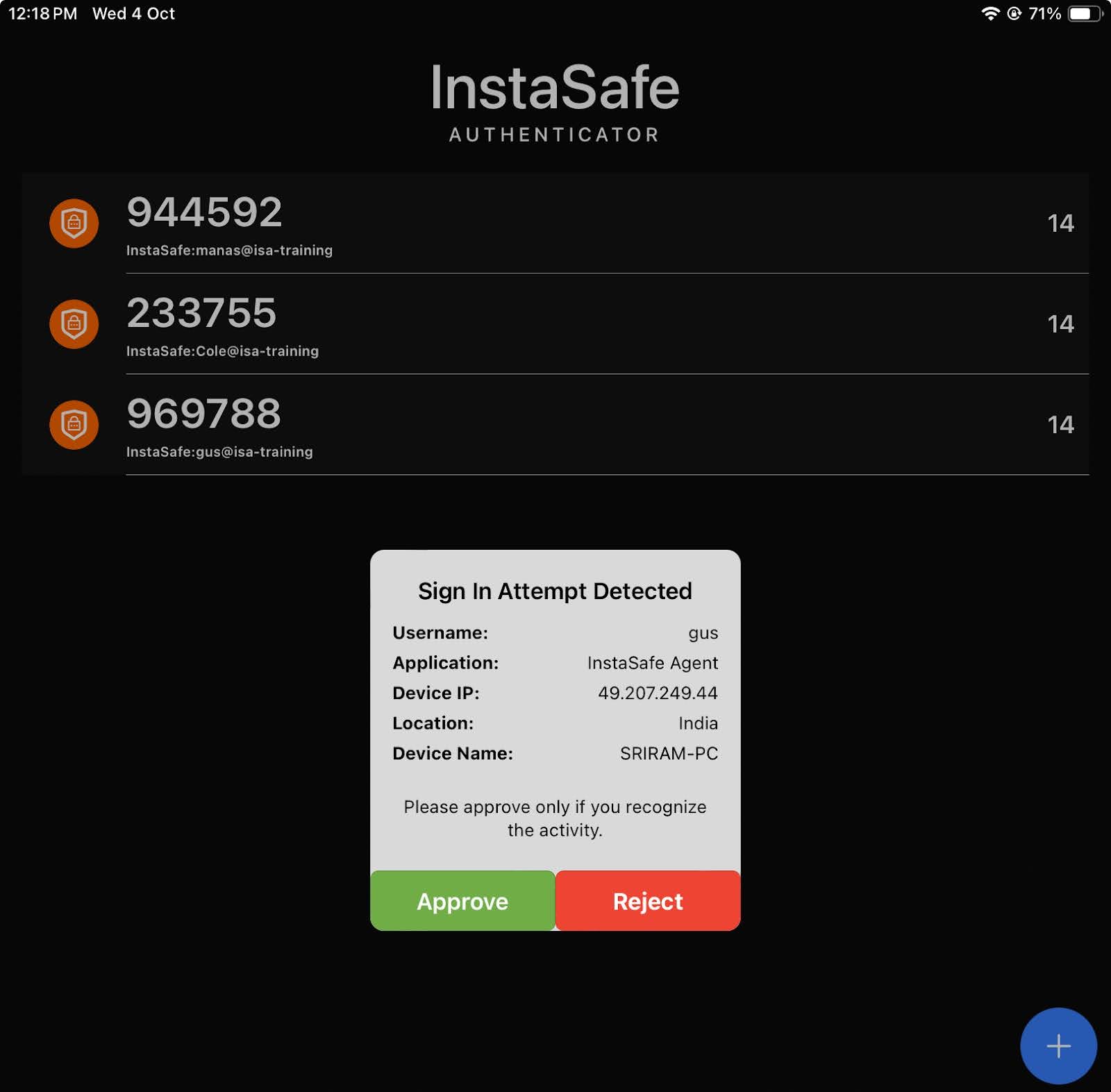
Push Notification Approval: The InstaSafe Authenticator App not only offers Time-Based One-Time Password (TOTP) for multi-factor authentication but also includes the convenience of Push Notification Approval. This feature streamlines the authentication process, providing an easier and more secure way for users to authenticate access to their accounts and systems.
-
Ease of Use: It’s designed to be easy to install, configure, and use. The app generates time-based one-time passwords (TOTP) that change every 30 seconds, which provides a highly secure method of verifying identity.
-
Cross-Platform Compatibility: The app is typically designed to work across both Android and iOS platforms, ensuring accessibility for a broad range of users, whether on smartphones or tablets.
-
Works Offline: Since the OTPs are generated locally on your device, the app does not require an internet connection to work, making it ideal for scenarios where internet access may be limited.
-
Compatibility with Standard 2FA Services: InstaSafe Authenticator supports the Time-based One-Time Password (TOTP) protocol, which is widely accepted by many online services, including email providers, social media platforms, cloud storage providers, and financial institutions.
Use Cases:
-
Securing Online Accounts (Email, Social Media, Banking):
-
By enabling MFA with InstaSafe, users can secure their accounts against unauthorized access. Even if an attacker has your password, they still need the OTP from your InstaSafe app to complete the login process.
-
Push Notification for Easy Authentication:
-
Instead of manually entering a time-sensitive OTP from the app, users receive a push notification on their mobile device when they attempt to log in. The user simply approves or denies the authentication request with a single tap, making the process quicker and more convenient.
-
Enterprise Systems and Applications:
-
Businesses can implement InstaSafe Authenticator to protect internal systems like HR platforms, CRM software, or project management tools. Employees will authenticate using their credentials plus the OTP generated by the InstaSafe app.
-
Single Sign-On (SSO) Integration:
-
InstaSafe can be integrated with Single Sign-On (SSO) systems to provide a unified and secure login process for employees accessing various enterprise tools, reducing the need for multiple logins while enforcing MFA.
-
Compliance and Regulatory Security:
-
For industries that require strict compliance (e.g., finance, healthcare), InstaSafe helps meet regulatory requirements by enforcing MFA for accessing sensitive data. This ensures that only authorized individuals can access systems containing confidential information.
-
Cloud-Based Application Security:
-
Protect your cloud-based tools, such as Google Workspace, Salesforce, or Microsoft Office 365, with an added layer of security via InstaSafe Authenticator, making it harder for hackers to access your cloud data even if they know your password.
Installing and Configuring the InstaSafe Authenticator App
Further, ISA supports various authenticator apps to provide Time-based OTPs (TOTP) for Two-Factor Authentication. This would effectively eliminate the dependency on mobile networks for SMS OTPs and avoid deadlock scenarios where users can access corporate email for email OTPs only after the ISA User Agent is connected.
InstaSafe Authenticator supports TOTP and push notification-based approval. The Authenticator supports iOS and Android devices; however, the MFA push notification menu is not displayed for MacOS and Linux users. Instead, the OTP field is displayed without giving the option to the user to choose the method to receive the OTP.
This article provides guidance on how to configure the InstaSafe Authenticator app for Two-Factor Authentication (TFA).
Installing the InstaSafe Authenticator app
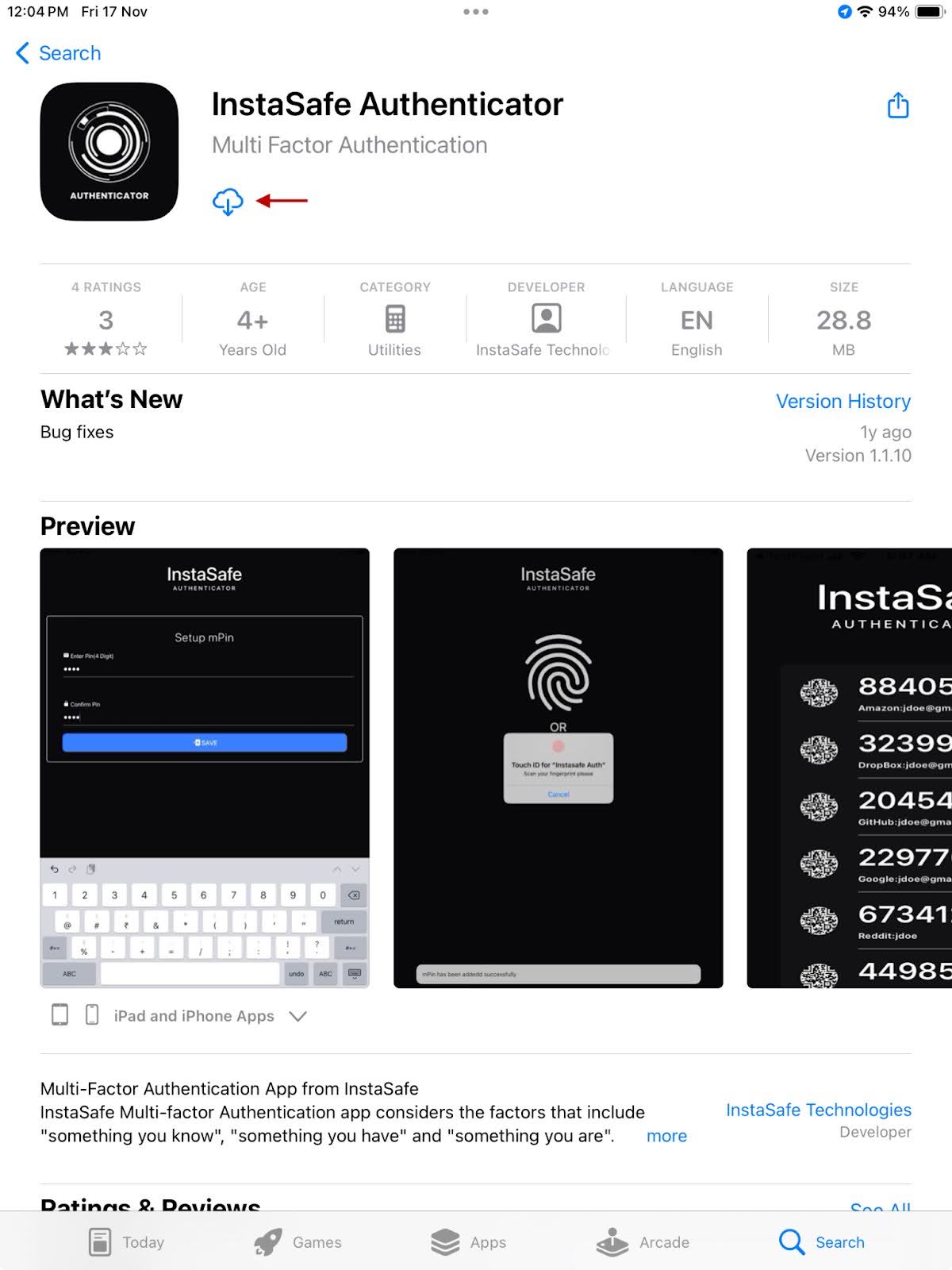
- Locate InstaSafe Authenticator in App Store or Play Store.
- Select the download icon.
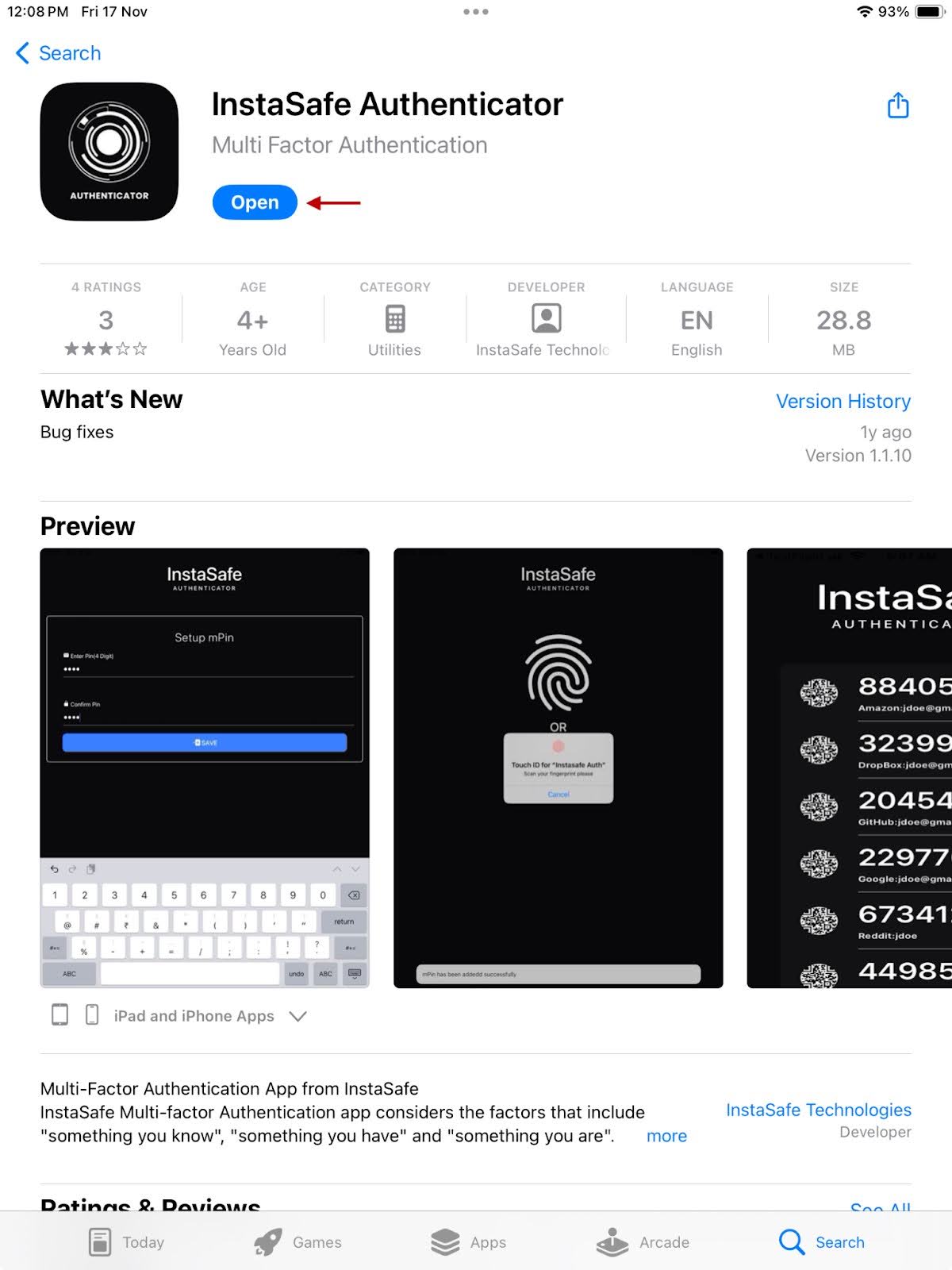
- Select Open
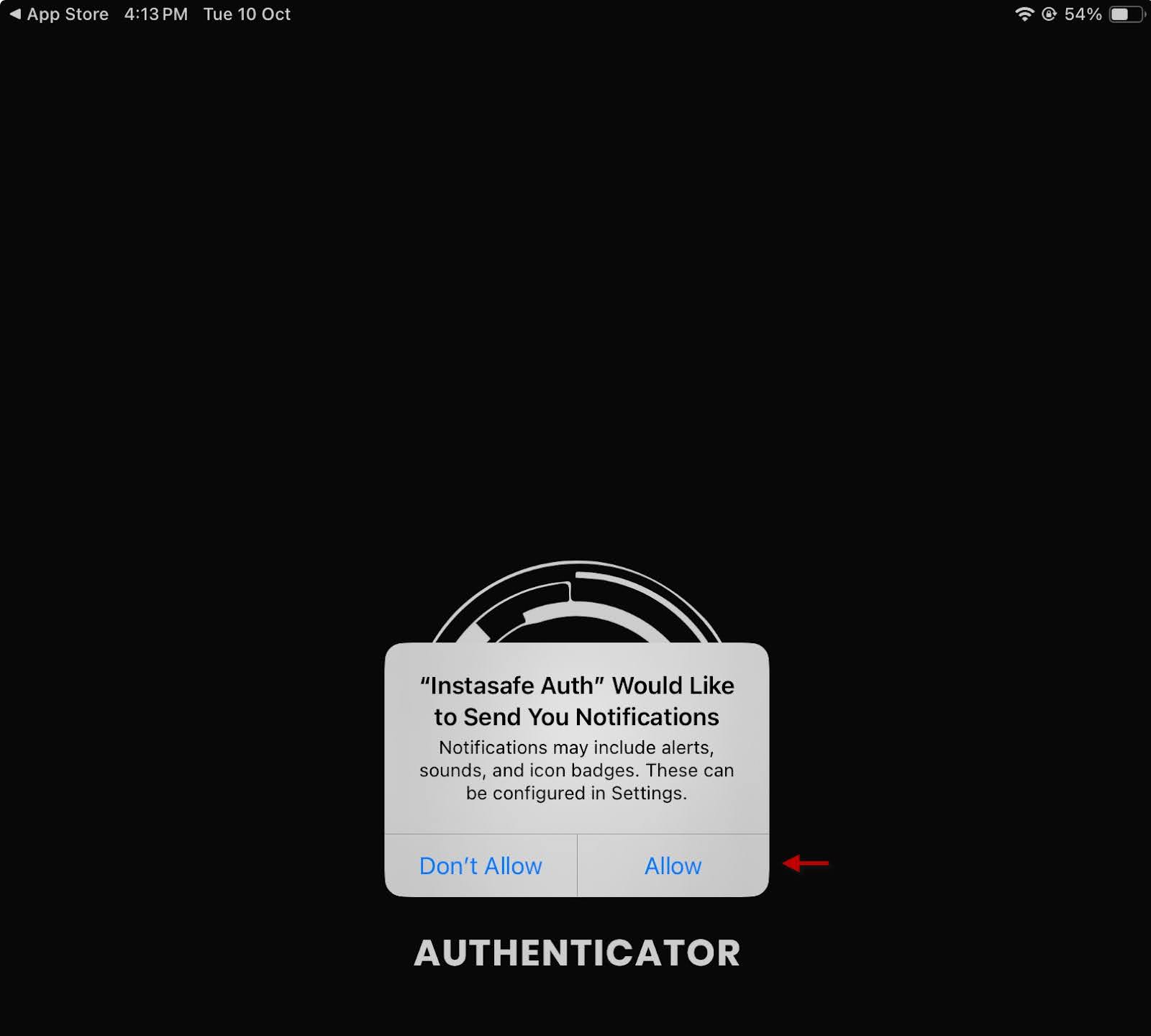
Setting mPin
- In the pop-up window, select Allow.
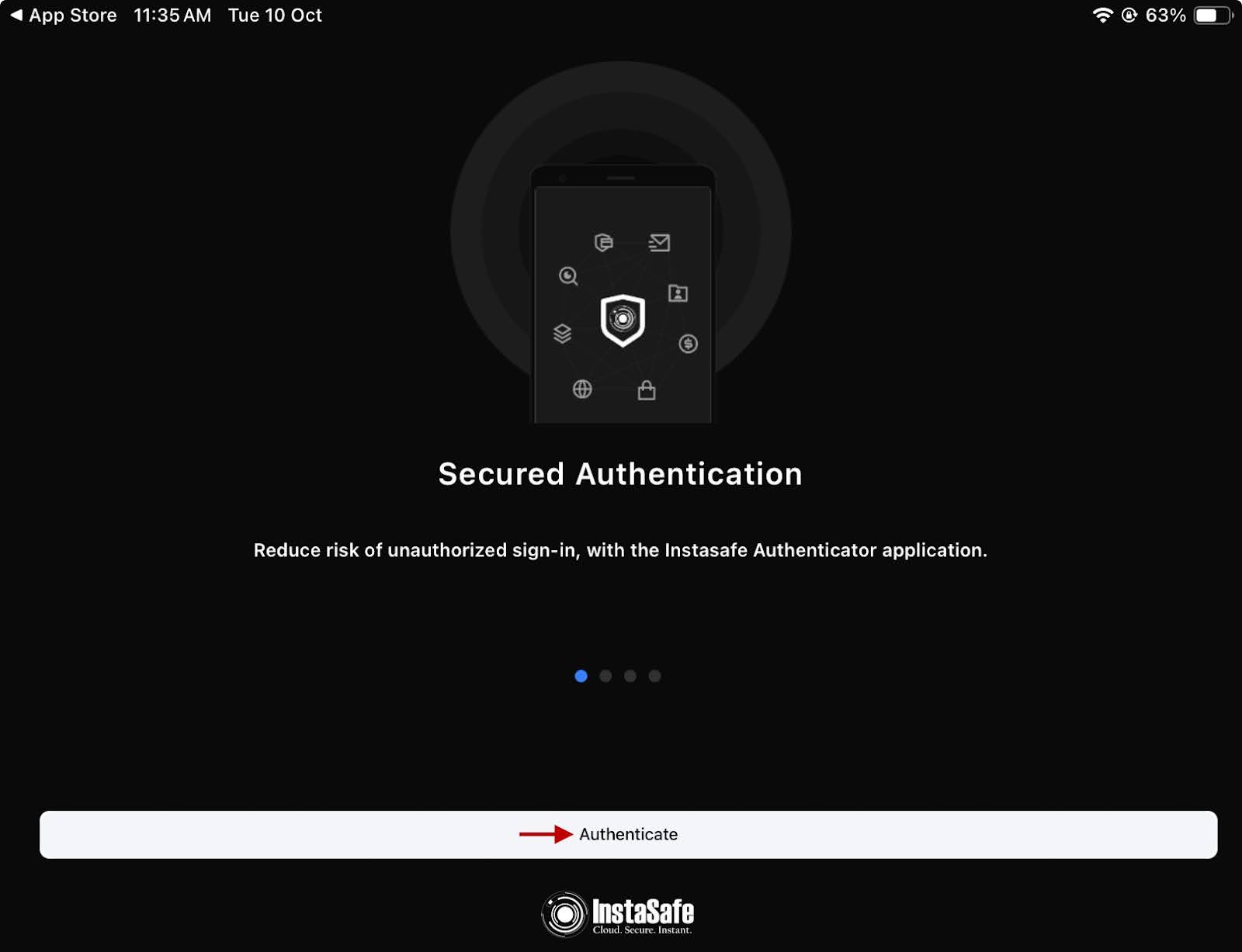
- When the app opens, select Authenticate on the home screen.
- On the Setup mPin, enter a pin to login to the app and confirm it.
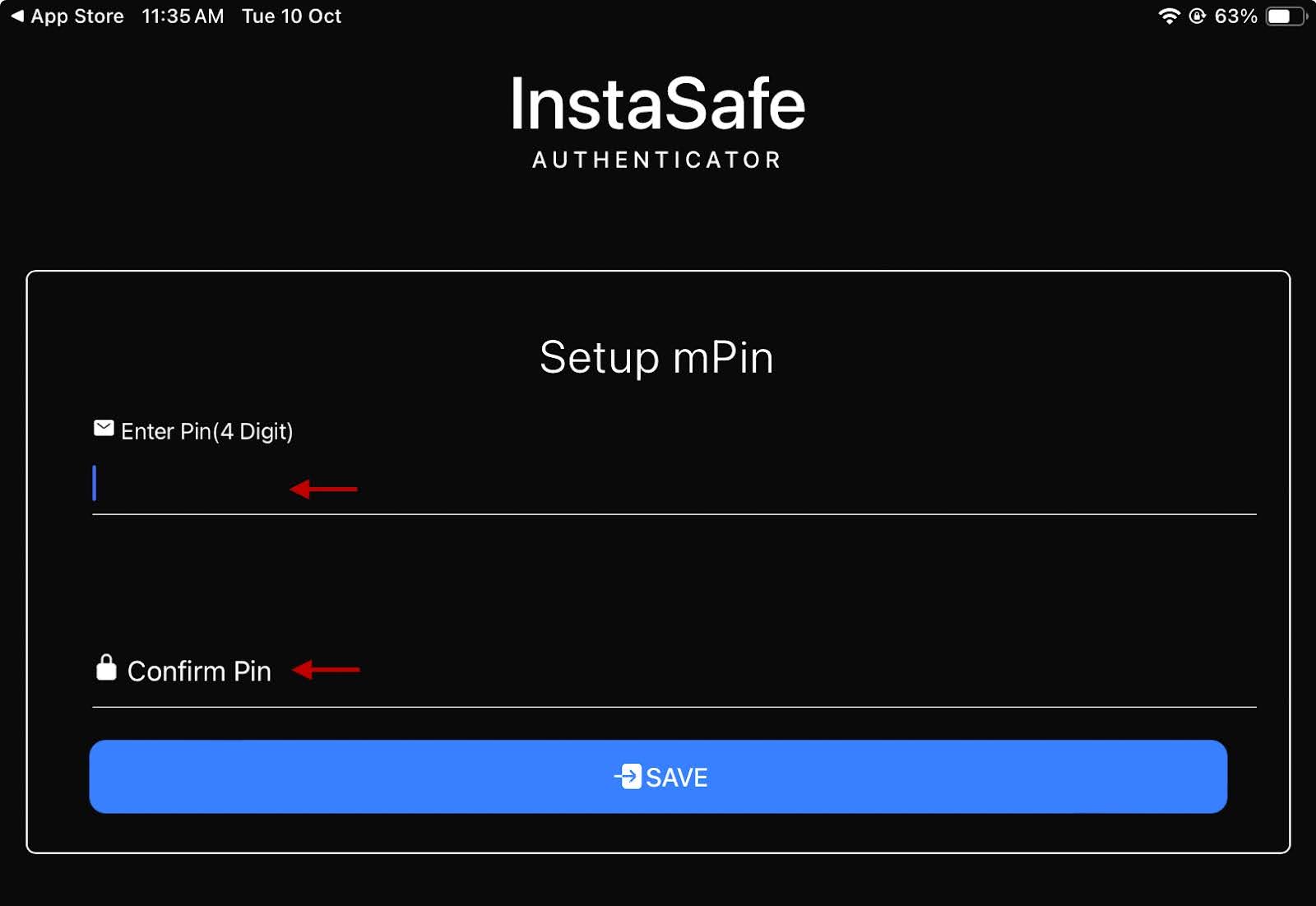
- Select Save.
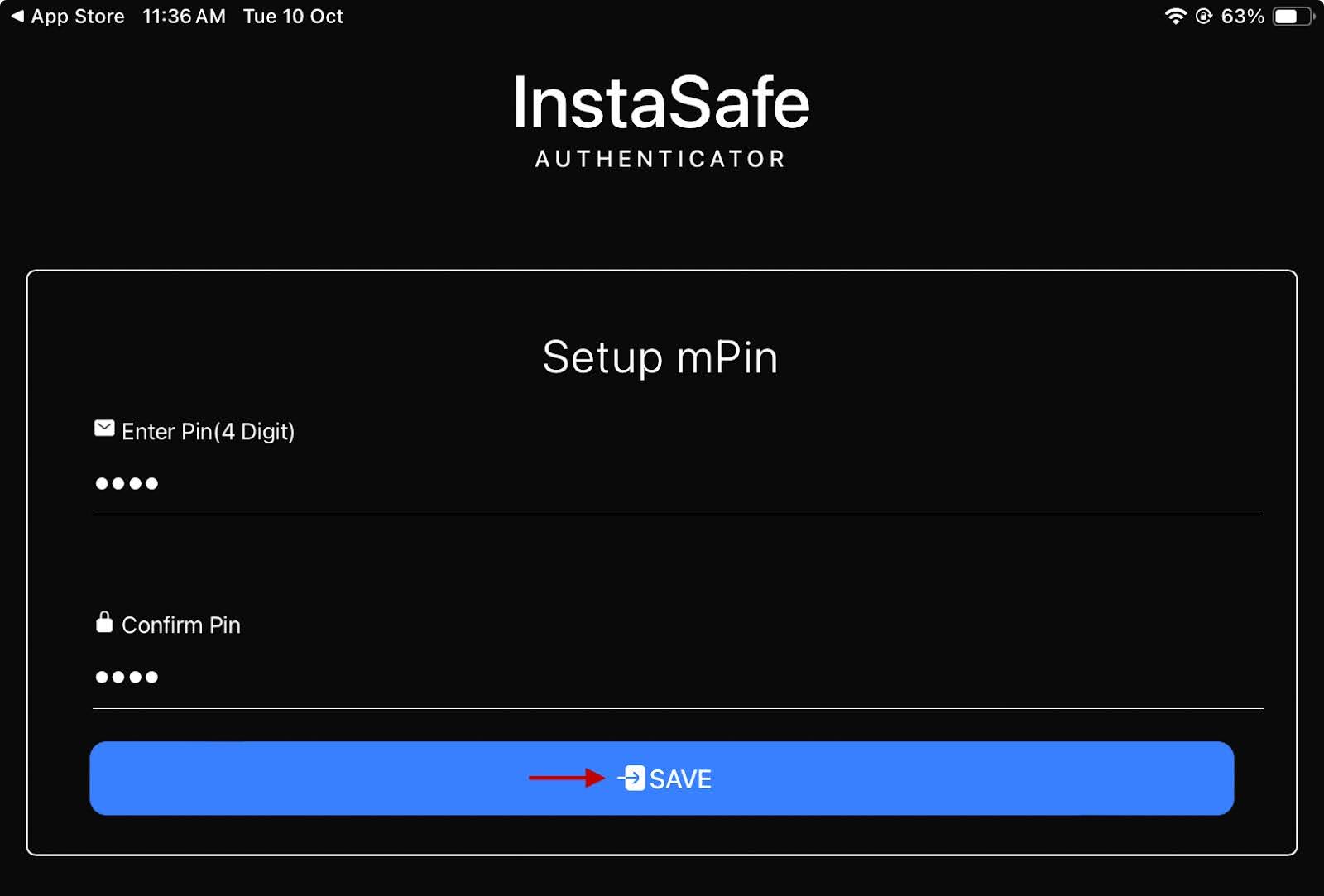
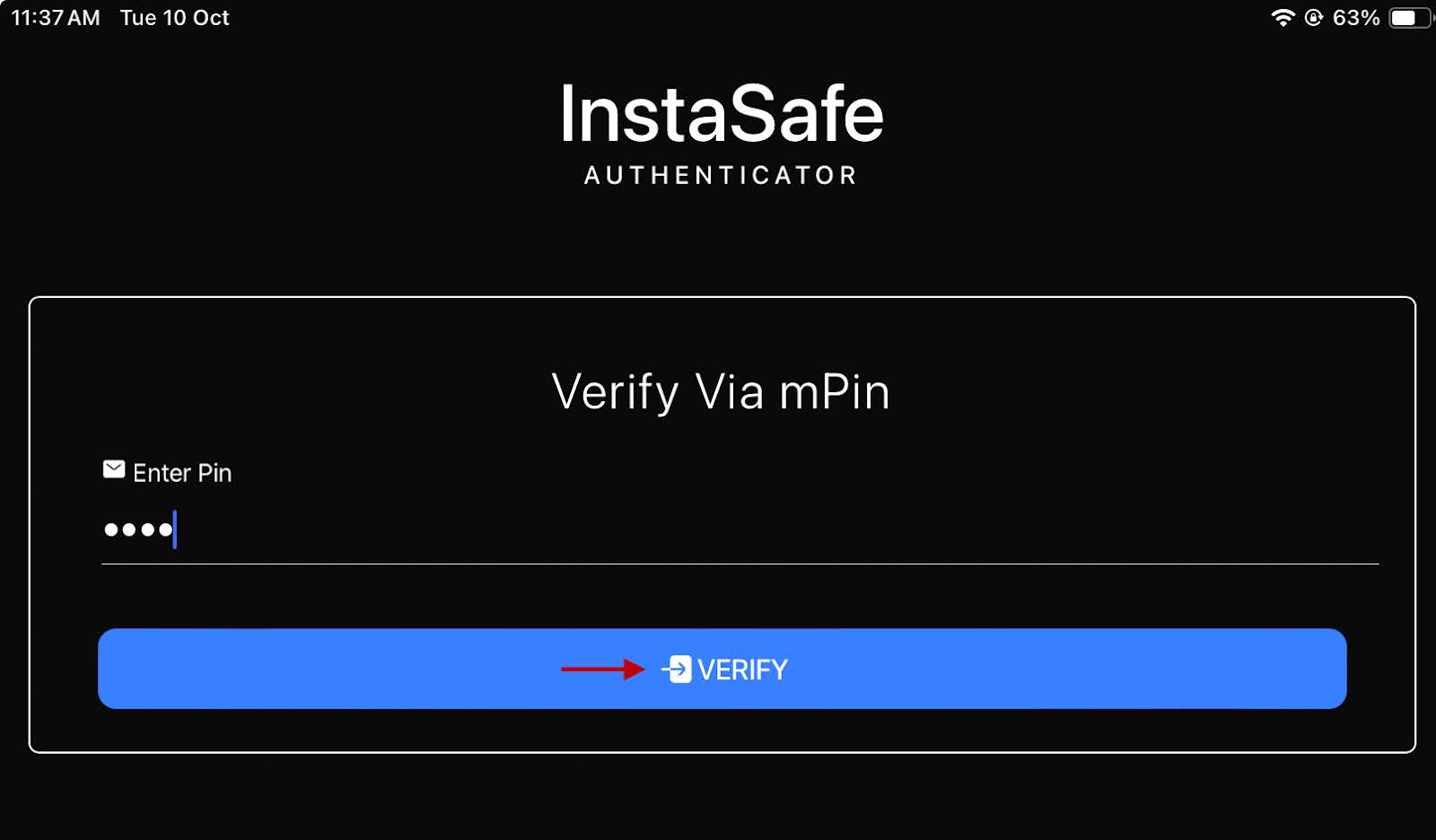
- On the home screen, select Login with mPin.
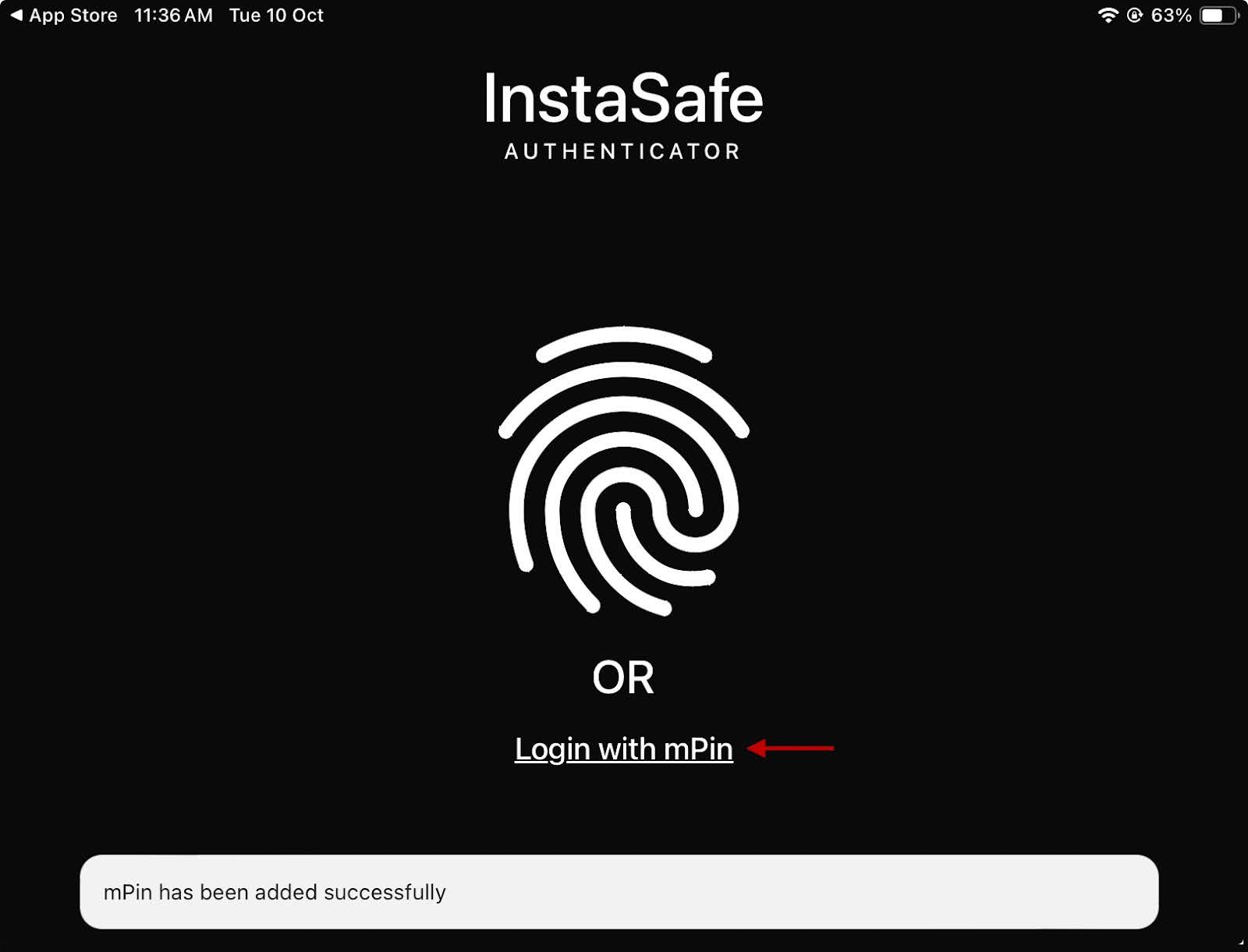
- Enter the login pin created earlier.
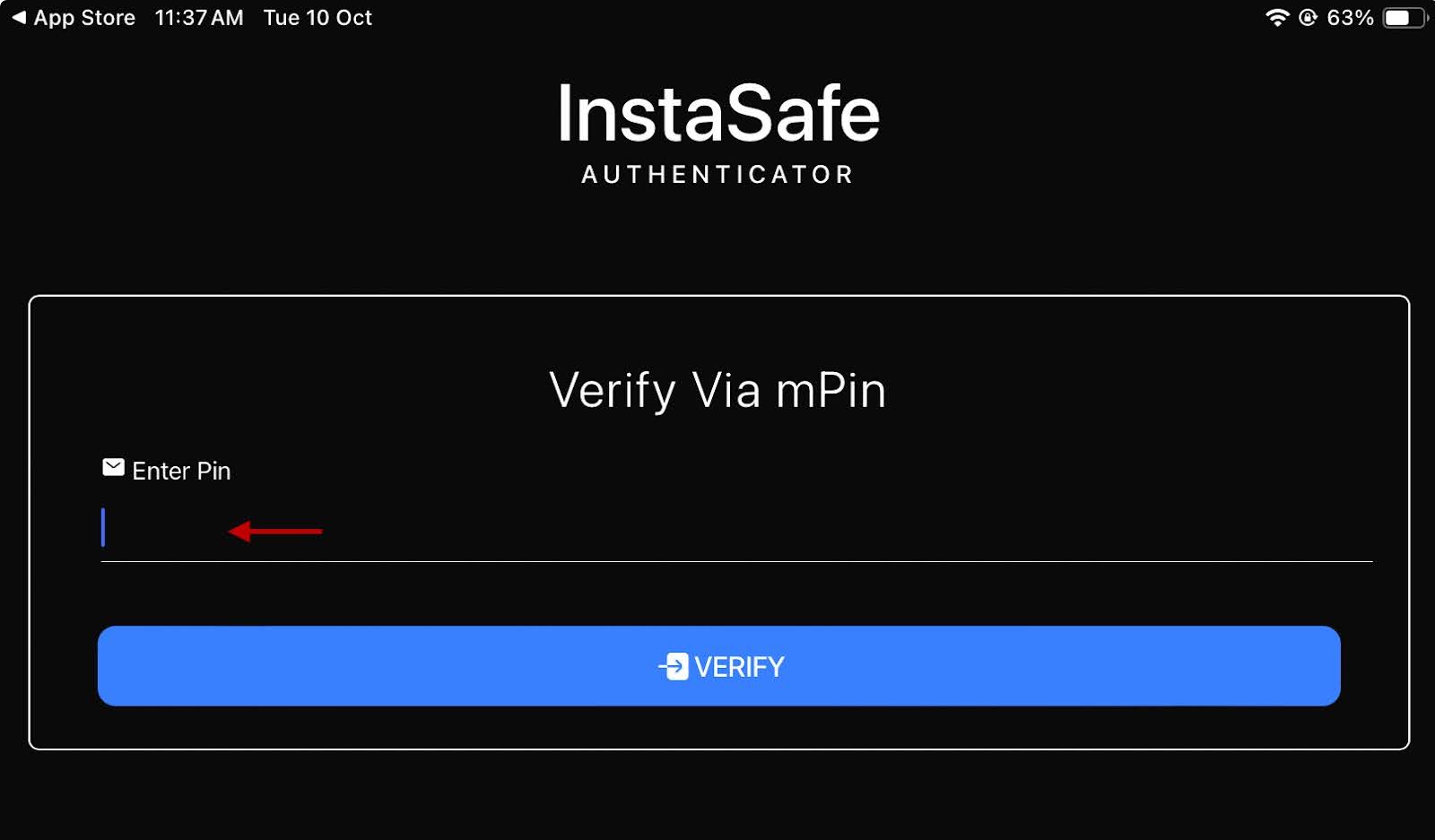
- Select Verify.
Adding the ISA Profile
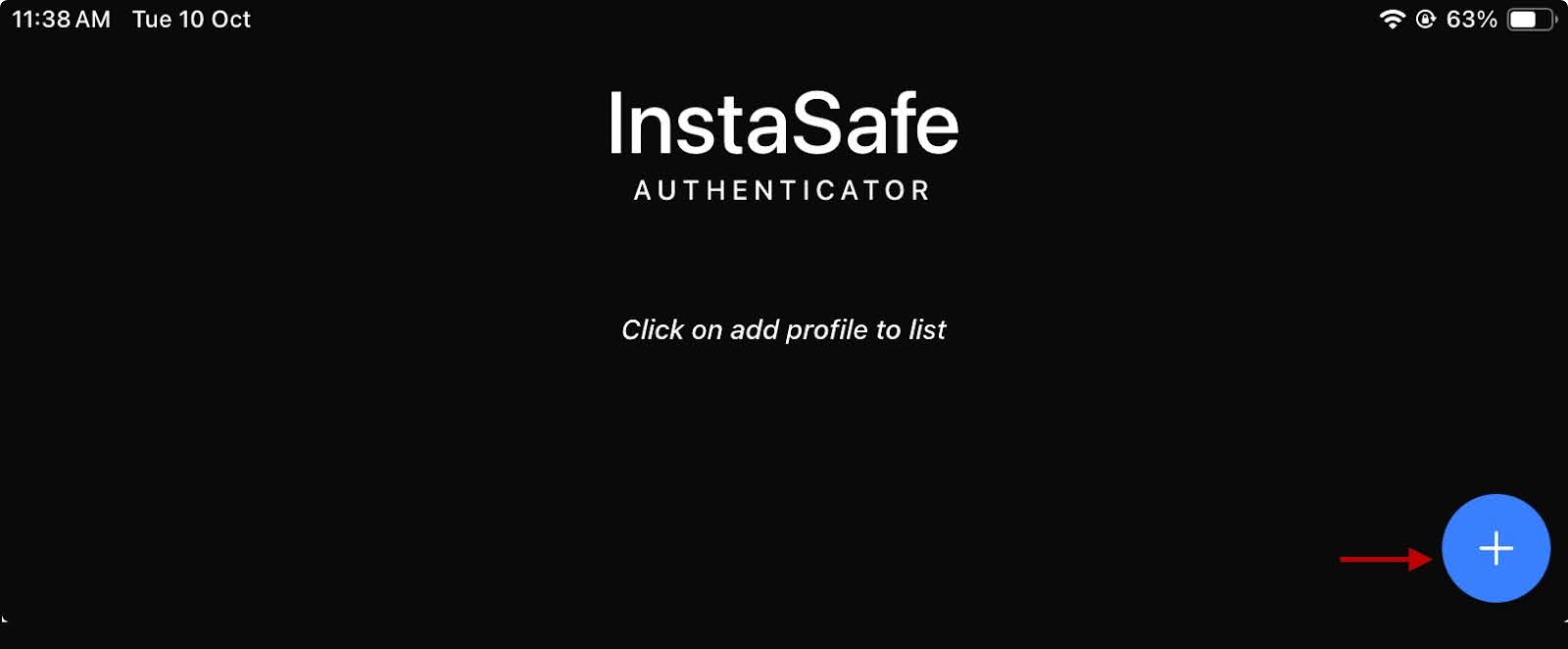
- Select the plus (+) icon.
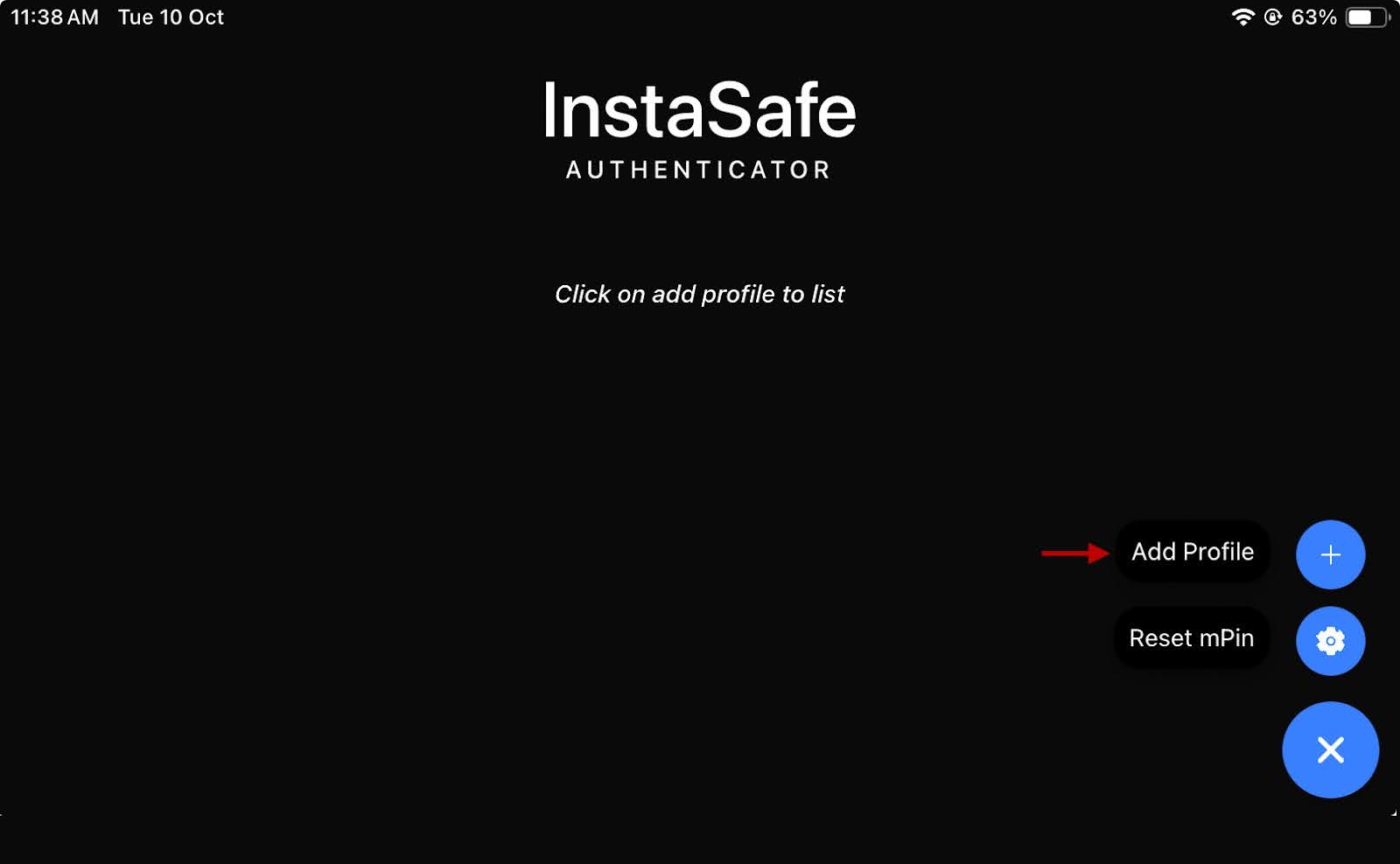
- Select Add Profile.
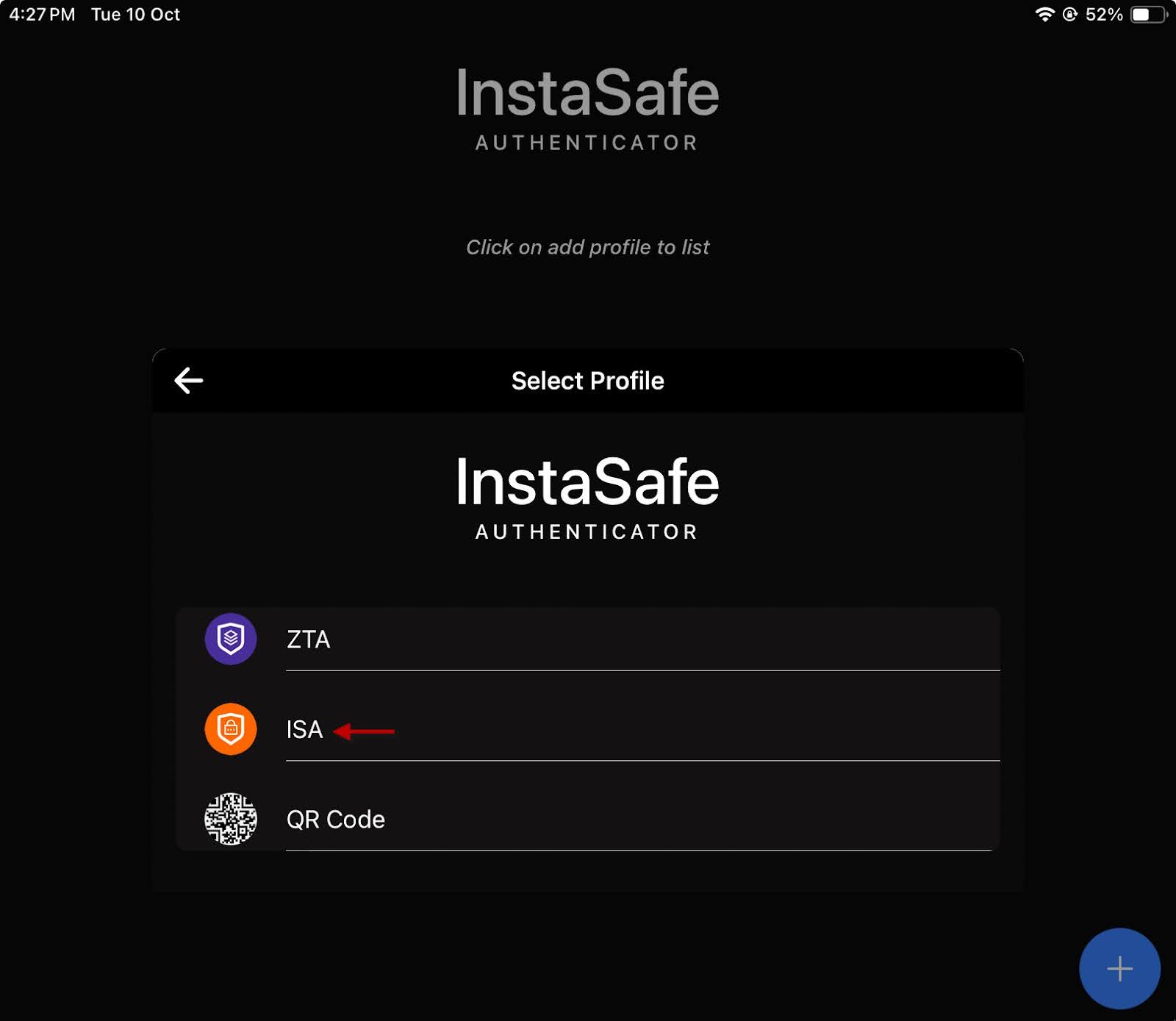
- Select ISA.
- Enter the sub-domain provisioned to your organisation by InstaSafe.
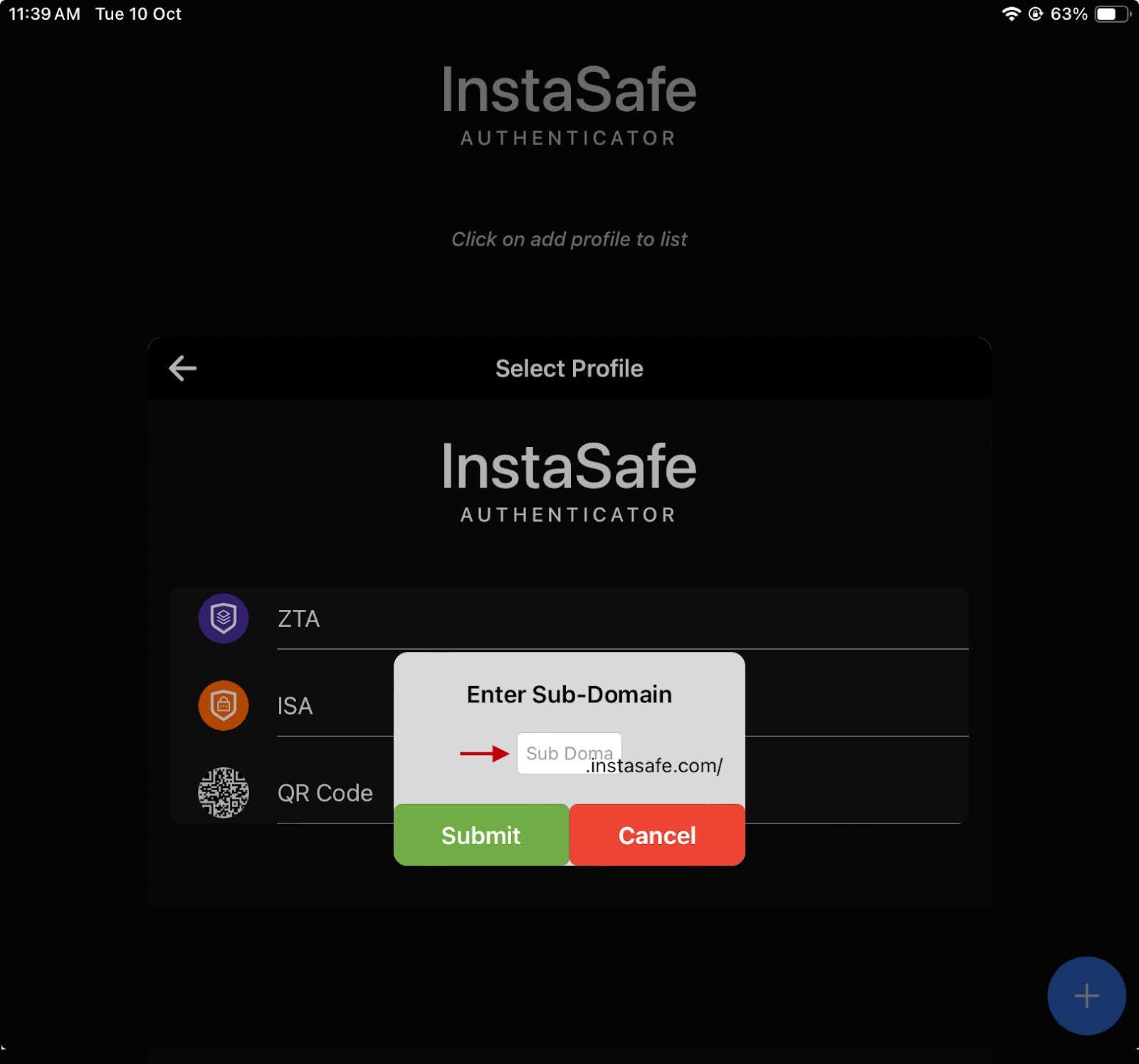
- Select Submit.
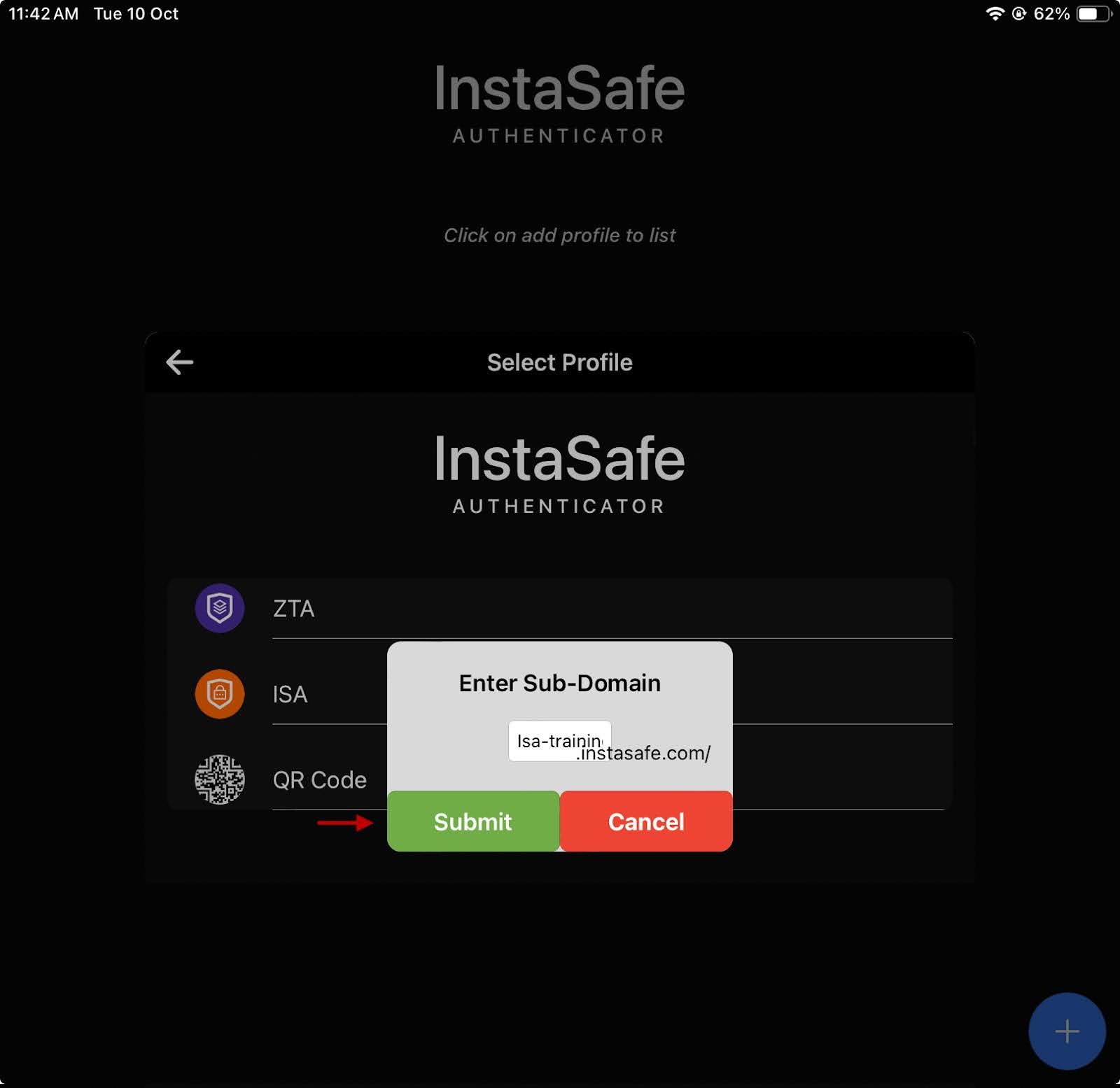
- You will be redirected to the ISA authentication page. Enter the username and password of the user.
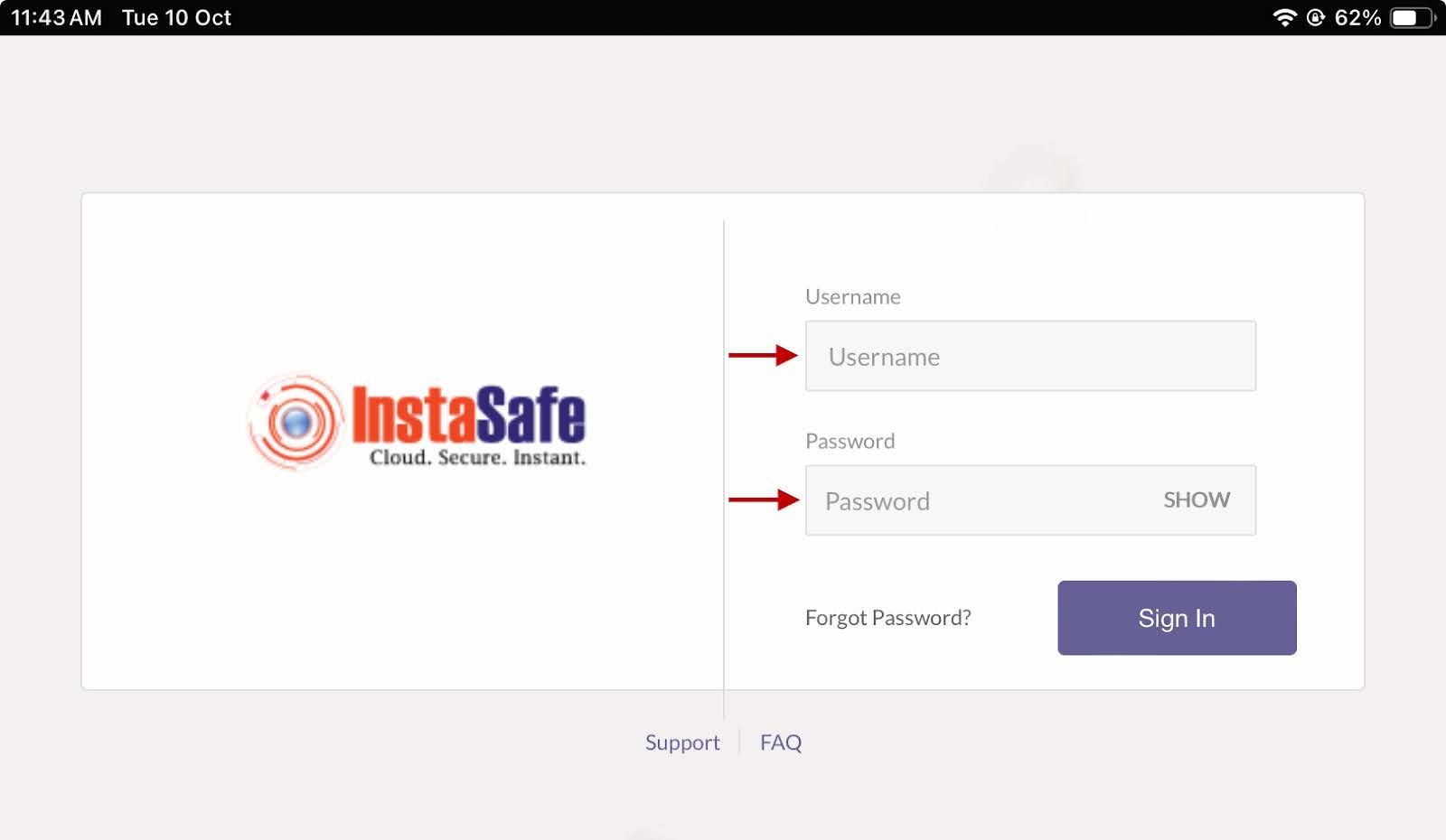
- Select Sign In.
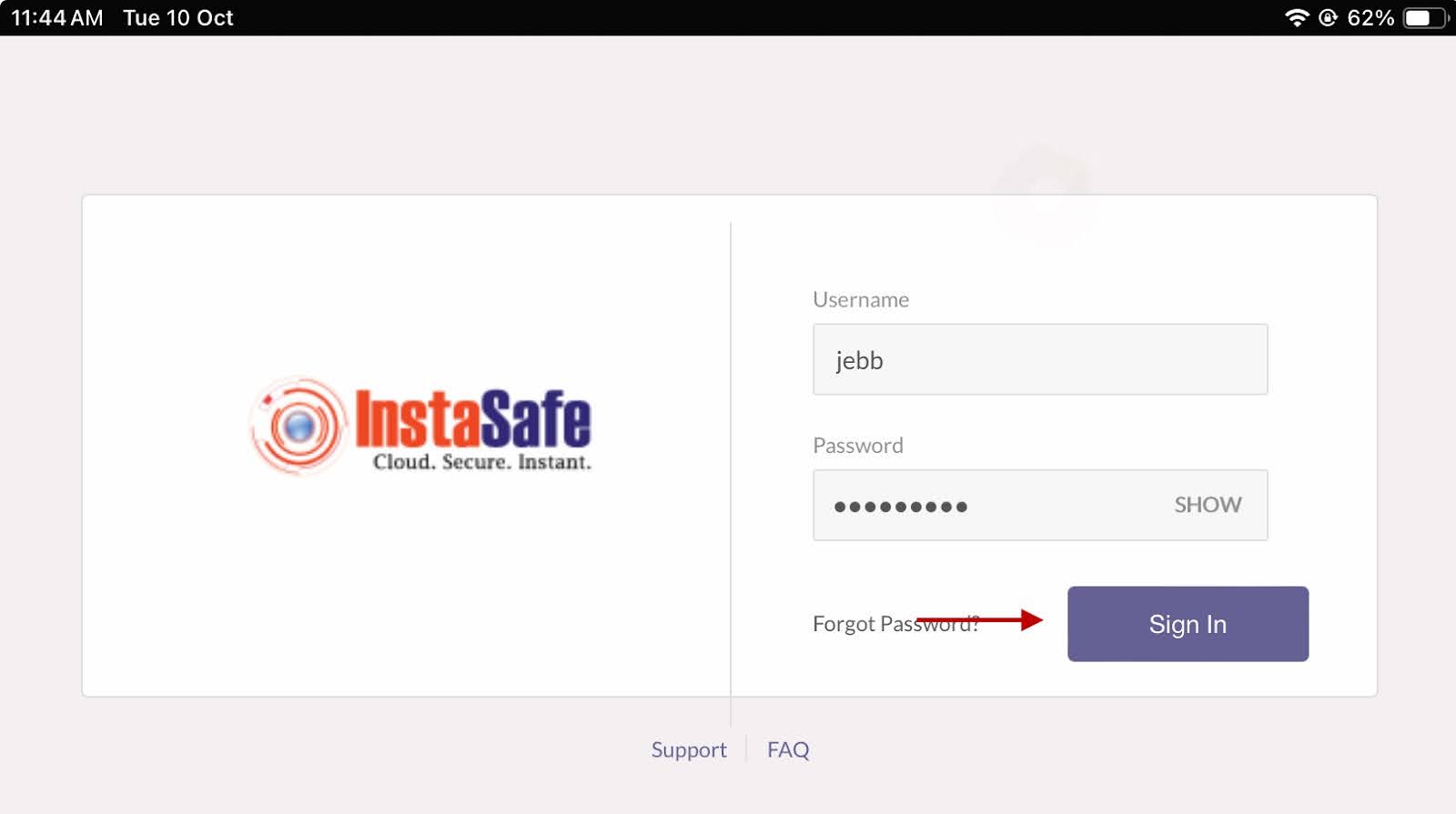
Note: If Two-Factor Authentication is enabled for the user, a menu is displayed with methods to obtain the OTP. Select SMS or email to receive the OTP. The MFA push notification menu is not displayed for macOS and Linux users. Instead, the OTP field is displayed without giving the option to the user to choose the method to receive the OTP.
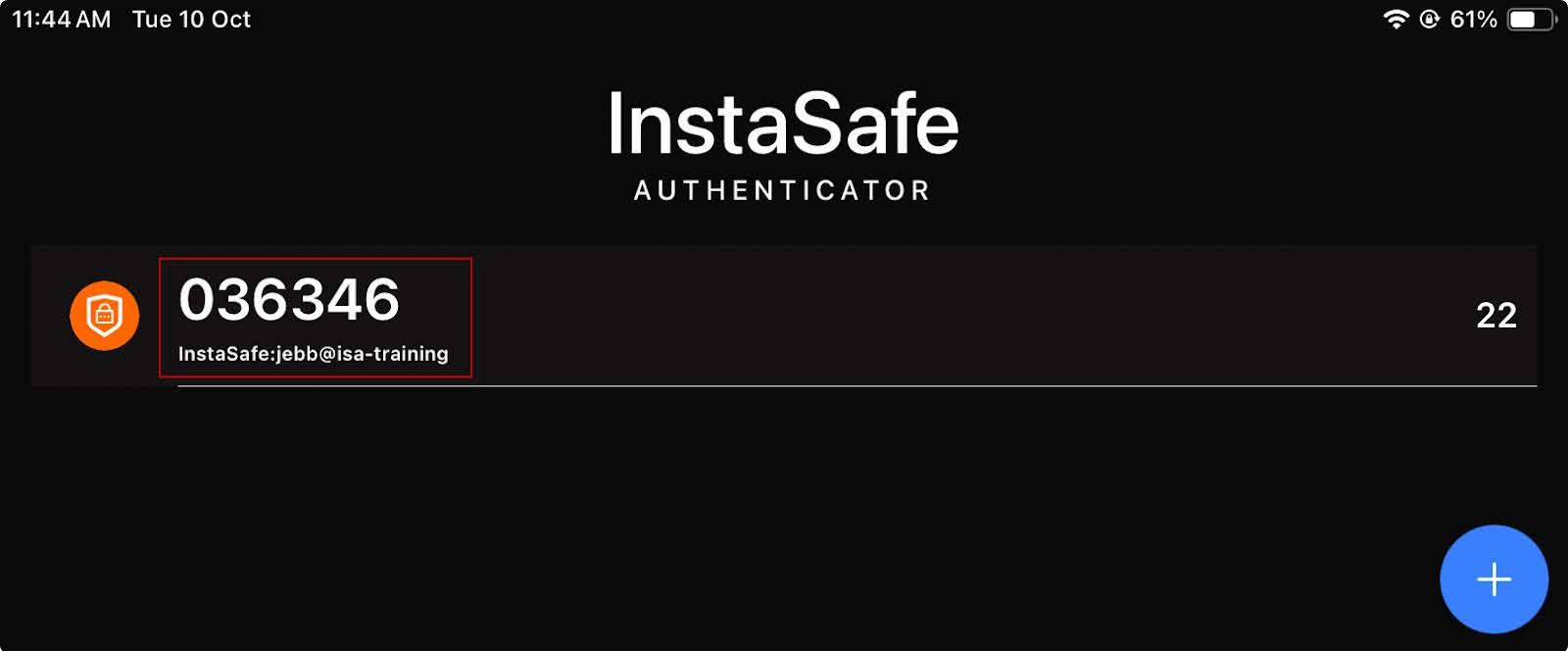
- Once the user is successfully authenticated, the user is added to the app. The TOTP pin for the user is displayed. A new TOTP pin is generated every 30 seconds. Use the pin for secondary authentication when accessing the ISA web console or connecting the ISA User Agent.
Testing
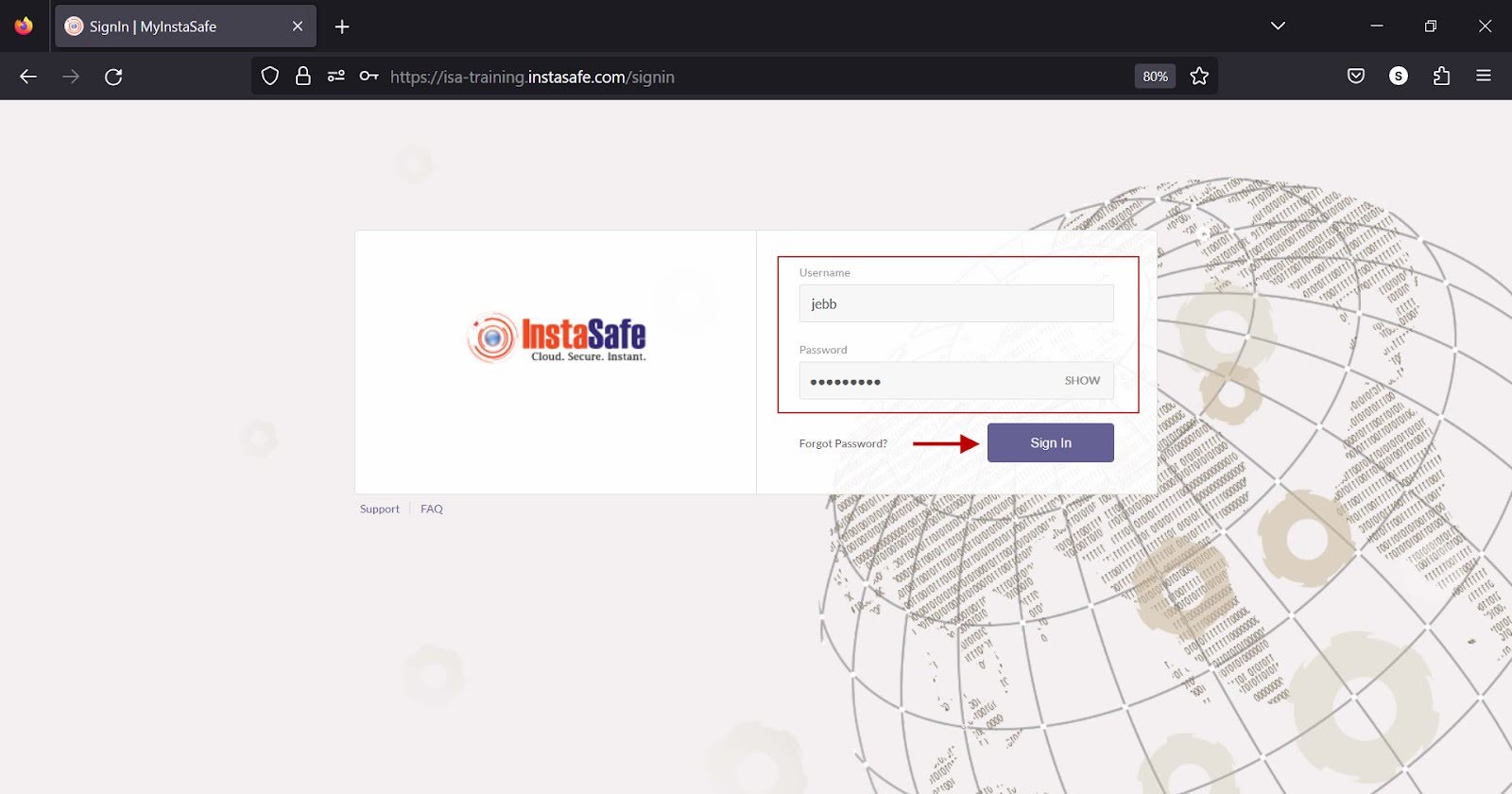
- Open a web browser and log into the ISA web console.
- Enter the username and password of the user and sign in.
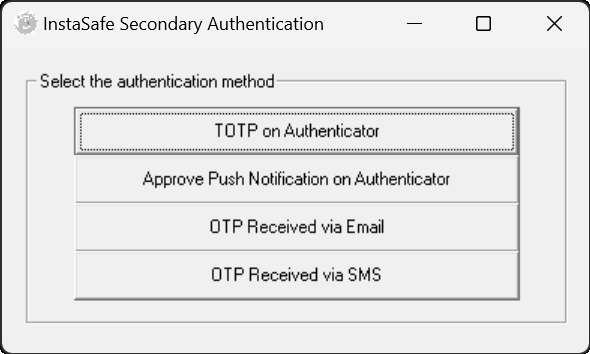
- When the user is prompted to select a method to receive the OTP, select TOTP on Authenticator.
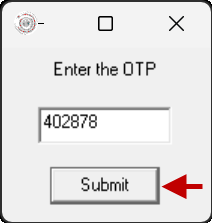
- On the OTP prompt window, enter the OTP received via the InstaSafe Authenticator App.
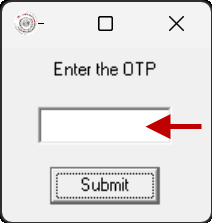
- Click Submit to the submit the OTP.
- If the option Approve Push Notification on Authenticator was selected, select Approve on the push notification received on the InstaSafe Authenticator App.
Authenticator Devices on the ISA Web Console
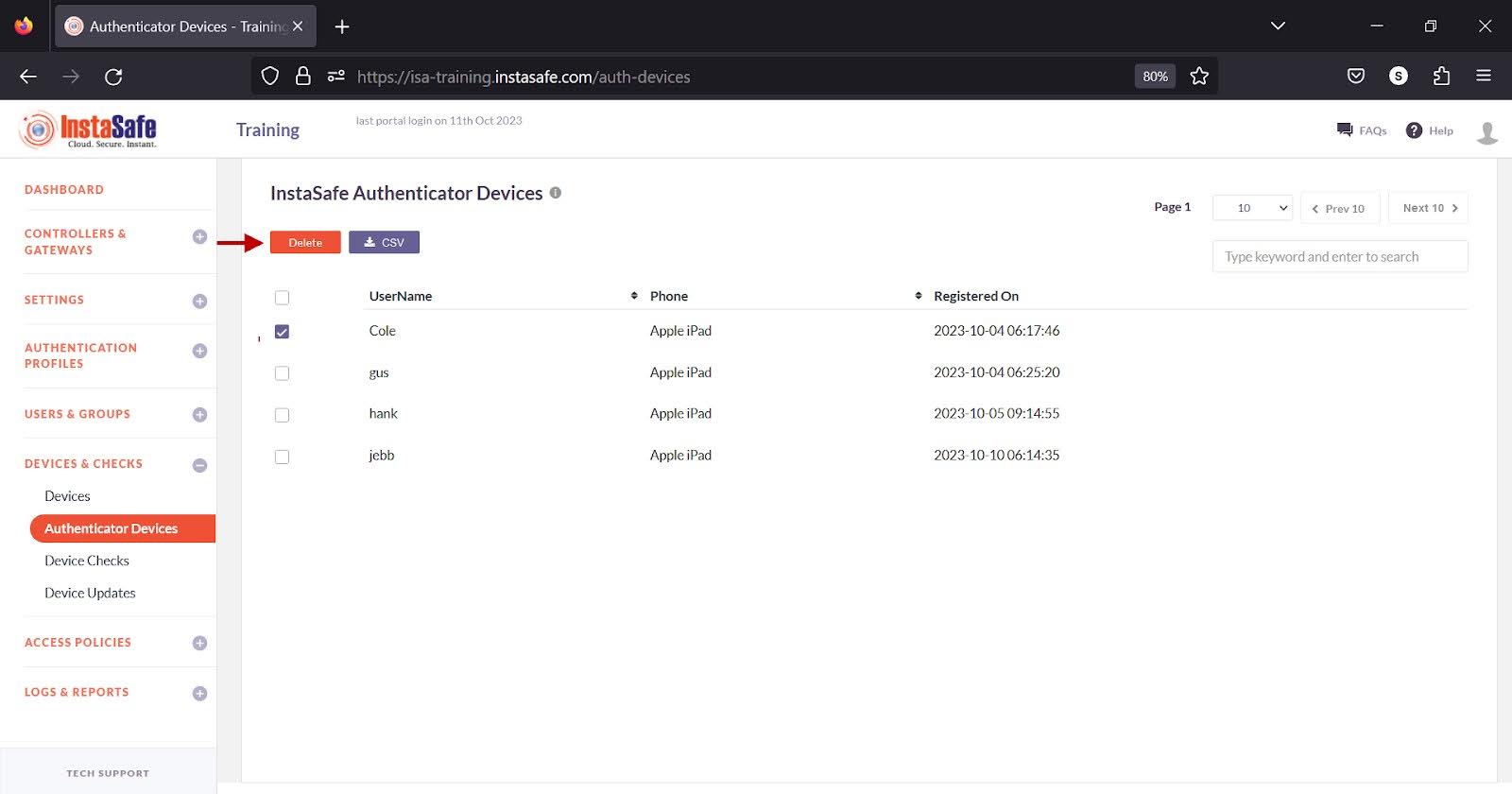
When an authenticator device is installed and a user profile added manually to it, as opposed using the QR code, the ISA web console administrator can view the device and the users added to it under the DEVICES & CHECKS > Authenticator Devices page.
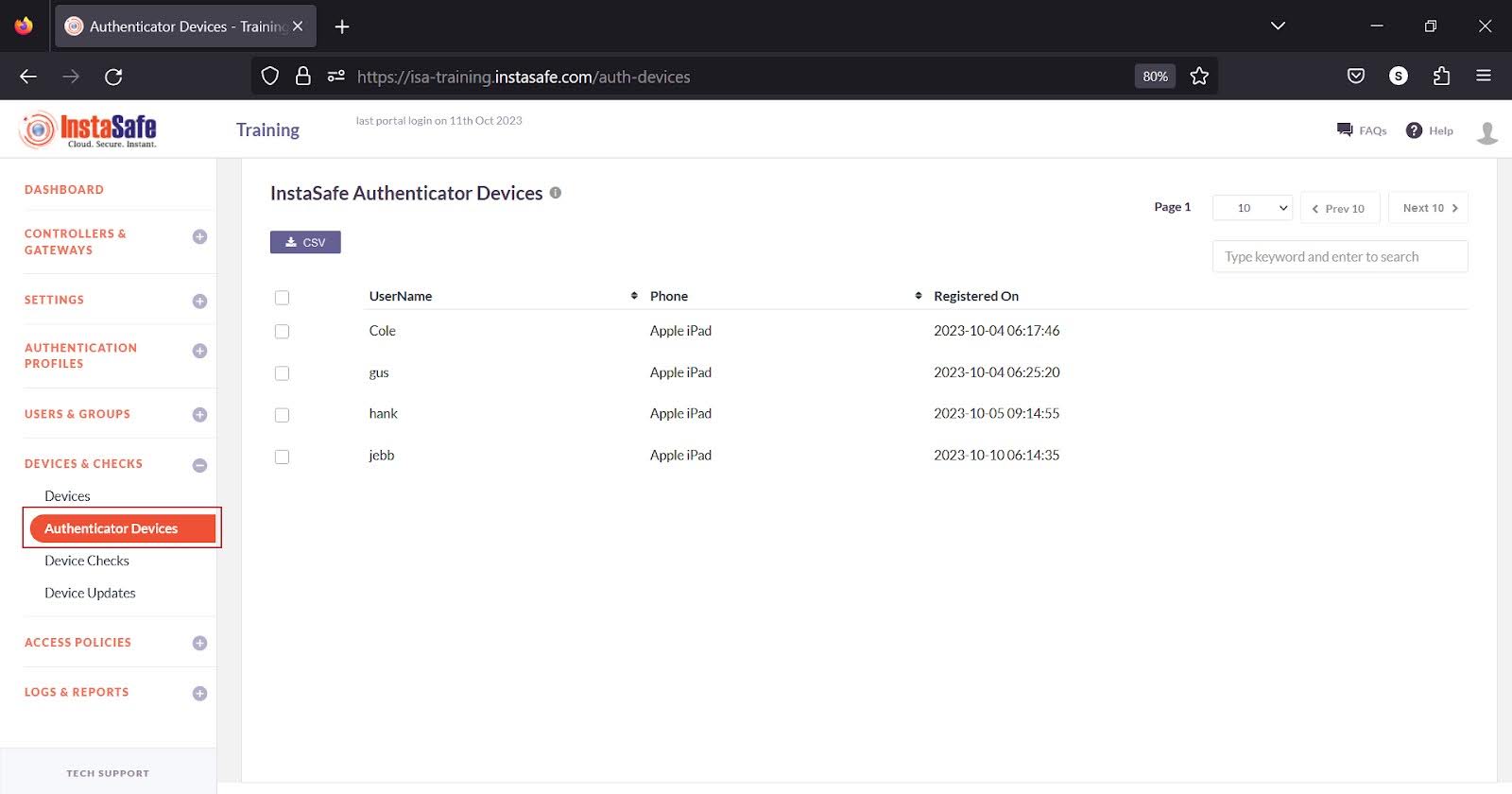
Note: Users with the authenticator app installed and authenticated are displayed on this page only if the user is authenticated manually. If authentication is using the QR code, the user is not displayed on this page.
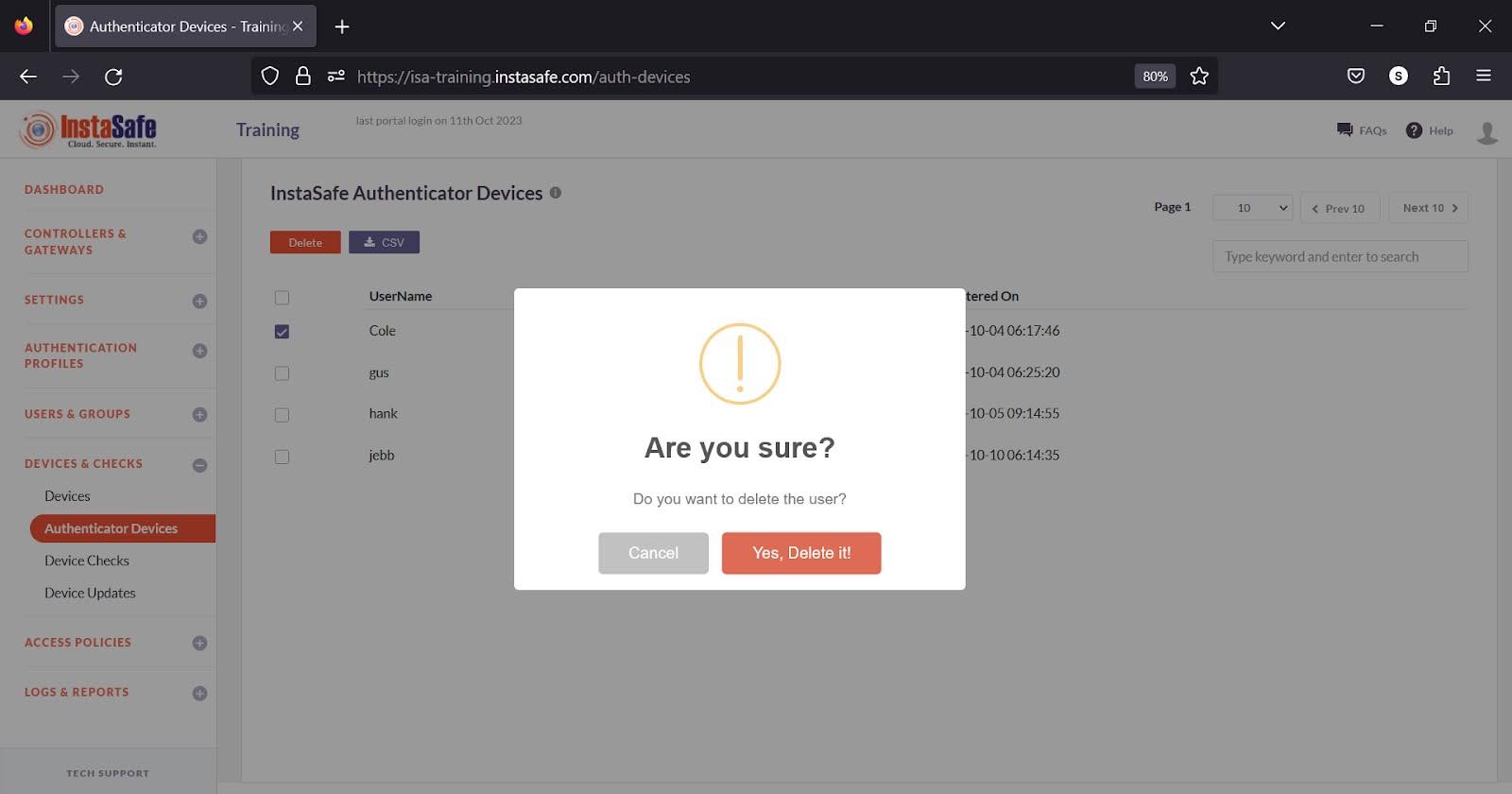
The administrator can choose to delete a user. To delete a user:
- Select the user by clicking the checkbox against the user.
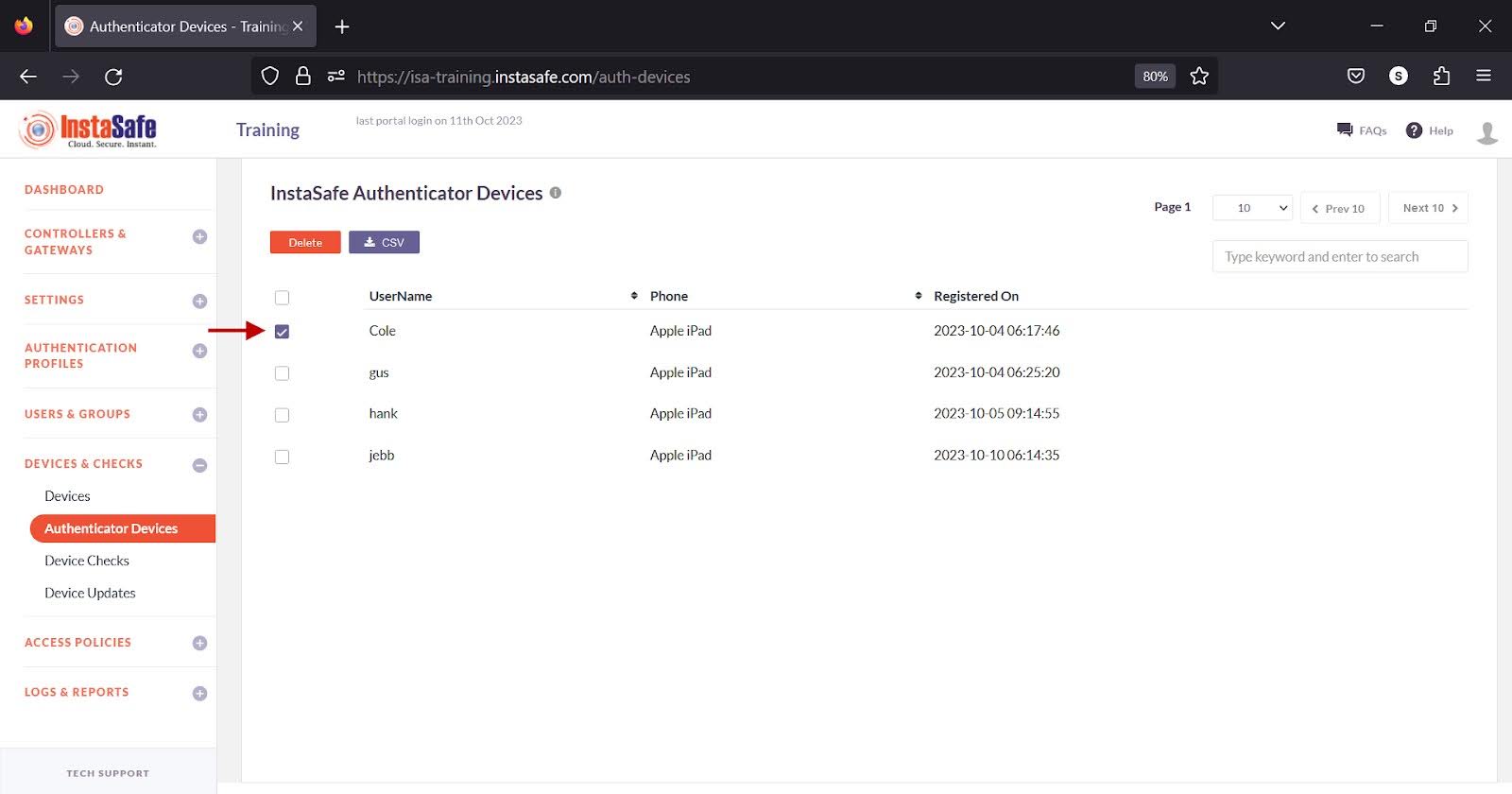
- Click the Delete button at the top.
- Click Yes, Delete it! on the confirm pop-up.
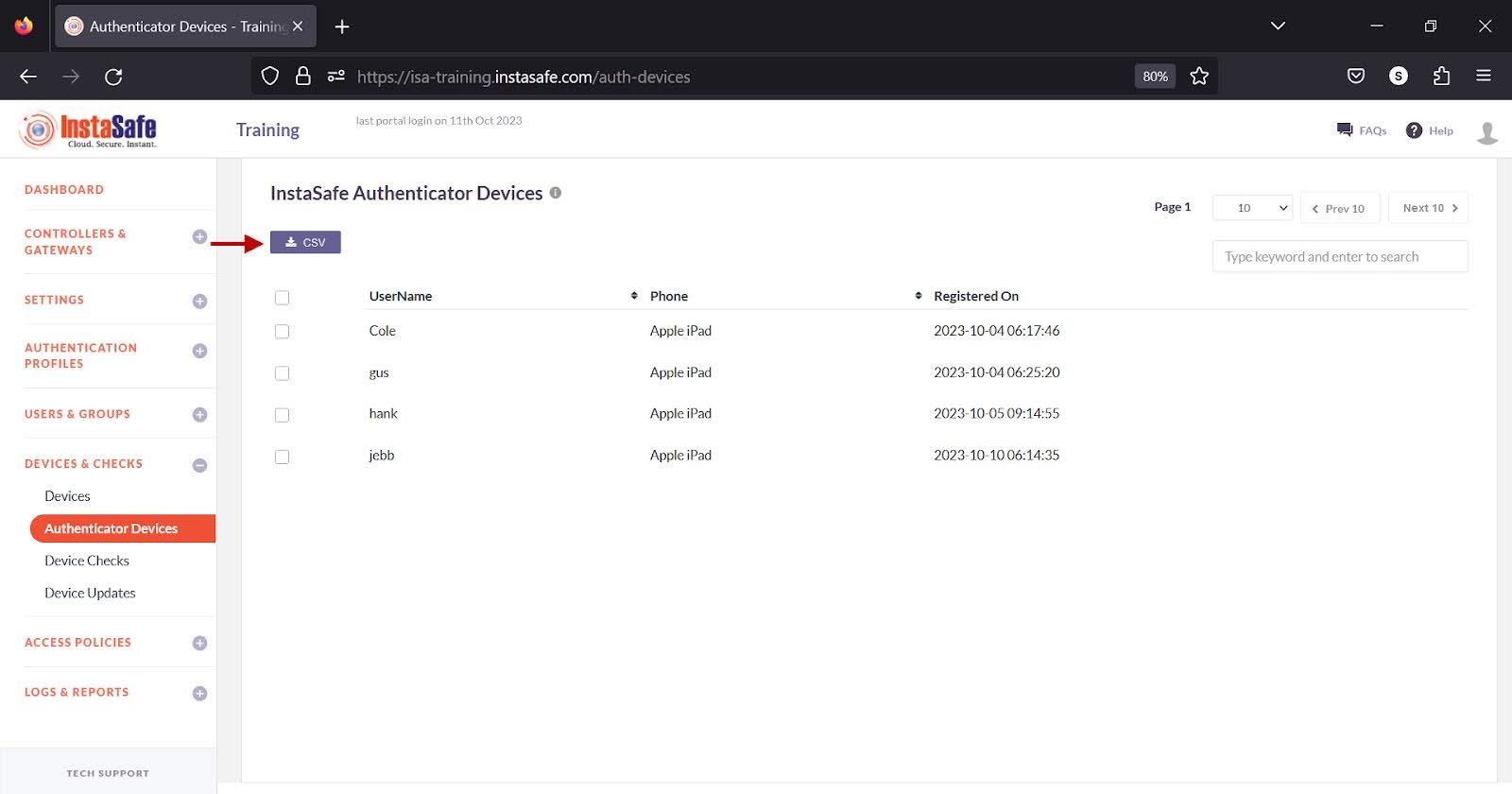
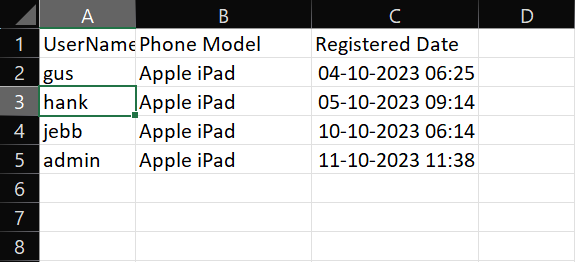
Administrators can download the user list by clicking the CSV button at the top.
- Click the CSV button at the top.
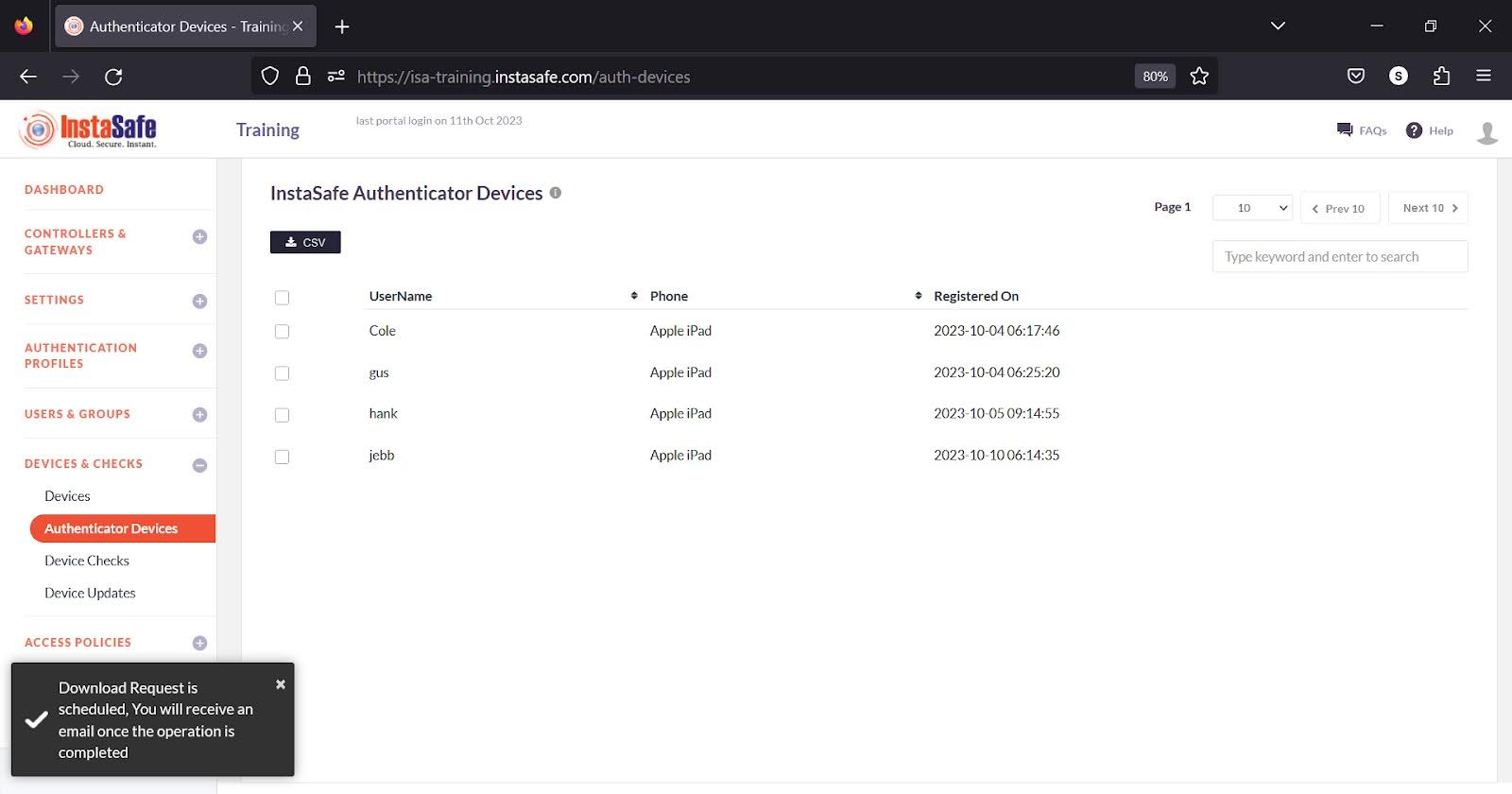
- An email will be sent to the email address configured in the user profile of the logged in administrator. The administrator will receive the following message at the bottom left of the page:
- The logged in administrator will receive an email as under
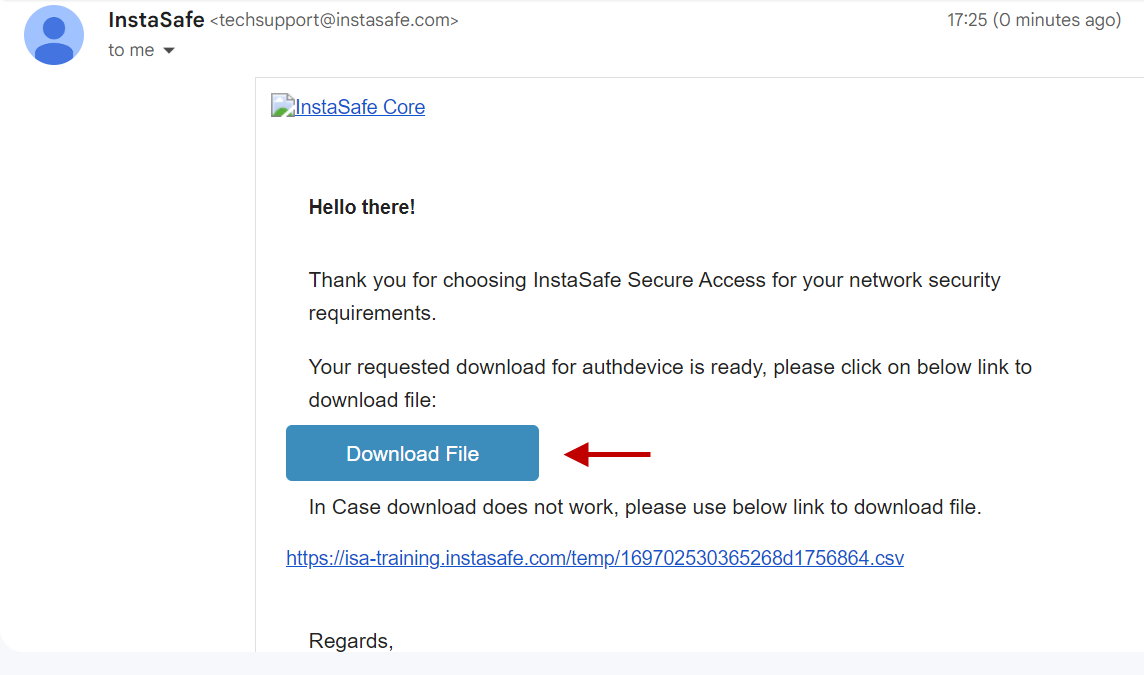
- Click the Download File button or click the link below and open the file in a spreadsheet application
Conclusion
InstaSafe Authenticator enhances secondary authentication by way of Time-based One-Time Password (TOTP) and push notification-based approval.